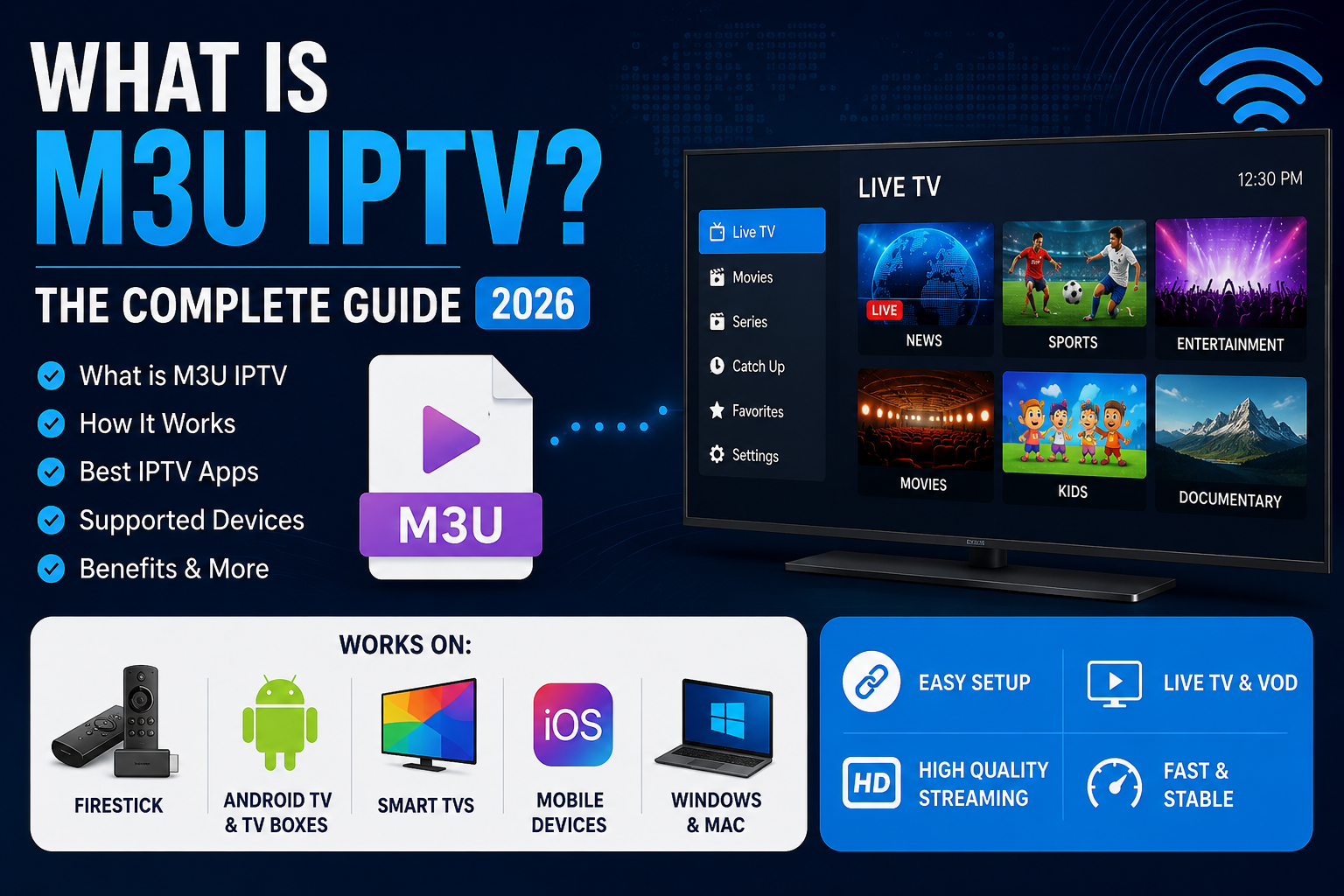
What is a M3U IPTV or M3U IPTV link, and how does an M3U playlist work? If you've recently purchased an IPTV subscription or started comparing IPTV services, you may have come across terms such as M3U IPTV, M3U playlist URL, or IPTV M3U link.
M3U is a widely supported playlist format used by IPTV applications to organize and access live television streams. With a compatible player and an authorized streaming source, an M3U playlist can provide access to live TV and, where supported, movies and video-on-demand content.
Whether you're using an Amazon Firestick, Android TV box, Samsung Smart TV, LG Smart TV, Apple TV, or computer, understanding M3U IPTV can help you choose the right streaming application and connection method.
In this 2027 M3U IPTV guide, we'll explain what an M3U playlist is, how M3U URLs work, how to set up IPTV on different devices, how M3U compares with Xtream Codes and Stalker Portal, and what to check before choosing an IPTV provider in Canada or elsewhere.
What Is M3U IPTV?
M3U IPTV refers to the use of an M3U playlist to load internet television streams into a compatible IPTV player. M3U is a playlist format rather than a streaming service or video format.
An M3U playlist contains references to media streams, allowing an IPTV application to identify available channels and display them in a user-friendly interface.
An IPTV provider may supply the playlist as:
- M3U playlist URL: An internet address that the player loads directly.
- M3U file: A downloadable playlist file that can be imported into a supported application.
- M3U8 playlist: A related playlist extension commonly associated with UTF-8 playlists and HTTP Live Streaming, depending on context.
The playlist itself does not guarantee access to any particular channel. The streams must be available, authorized, and compatible with the player being used.
How Does an M3U IPTV Playlist Work?
An IPTV M3U link works by providing a compatible media player with a list of streaming sources.
The basic process is straightforward:
- Choose a legitimate IPTV service that supports M3U playlists.
- Receive an M3U URL or playlist file from the provider.
- Install a compatible IPTV application on your streaming device.
- Select the option to add an M3U playlist.
- Enter the playlist URL or import the file.
- Allow the application to load the available channels and categories.
- Choose a channel and begin streaming.
Some playlists also contain channel names, logos, group information, and identifiers that can help an IPTV application organize the available content.
An Electronic Program Guide may require a separate EPG URL or an additional configuration step.
M3U IPTV Canada: How to Choose a Compatible Subscription
Customers searching for M3U IPTV Canada often want a subscription that works with their existing streaming devices without requiring a dedicated IPTV receiver.
Before choosing a service, check whether it supports M3U playlists, which applications are compatible, how many simultaneous connections are included, and whether the programming you want is available.
Canadian viewers may also want to consider internet performance, customer support, subscription terms, and any geographic restrictions.
If you're comparing providers, explore IPTV Canada to review SharkTV's available subscription options.
How to Set Up M3U IPTV on Firestick
Amazon Fire TV devices are commonly used for IPTV streaming. On compatible models, an M3U playlist can be loaded through an IPTV player that supports playlist URLs.
M3U IPTV Firestick Setup Steps
- Connect your Fire TV device to the internet.
- Install an IPTV player compatible with your device and operating system.
- Open the application and choose the M3U playlist option.
- Enter the M3U URL provided by your authorized IPTV service.
- Save the playlist and allow the application to load the channel list.
- Add an EPG URL if supported and provided.
- Select a channel to test playback.
Compatibility note: Fire TV devices use different operating systems, and application availability varies. Check whether your particular model supports the player you intend to use before installing it.
How to Set Up M3U IPTV on Android TV and Google TV
Android TV and Google TV devices can support M3U playlists through compatible IPTV applications.
- Install a supported IPTV player from an appropriate app source.
- Open the player and choose to add a playlist.
- Select the M3U playlist or URL connection option.
- Enter your playlist address.
- Allow the application to download the playlist information.
- Configure the EPG if available.
- Test live TV playback.
The exact steps depend on the application. Some IPTV players offer separate options for M3U playlists and Xtream Codes accounts.
M3U IPTV on Samsung and LG Smart TVs
Many Samsung and LG Smart TVs support IPTV applications capable of loading M3U playlists.
To use an M3U playlist on a compatible Smart TV:
- Check the television's app store for a compatible IPTV player.
- Install and launch the application.
- Follow the player's instructions for importing an M3U playlist.
- Enter the playlist URL or use the application's supported activation method.
- Load the channel list and test playback.
Some Smart TV applications require a separate activation or license fee. This is usually independent of the IPTV subscription itself.
Application availability varies by television model, operating system, and region.
Best IPTV Apps for M3U Playlists
Choosing a compatible IPTV player is an important part of setting up an M3U IPTV subscription.
Common IPTV players that support M3U playlists on selected platforms include:
- TiviMate: IPTV player commonly used on Android TV devices.
- IPTV Smarters: Supports playlist-based connections on compatible versions.
- XCIPTV Player: IPTV player supporting selected playlist and account formats.
- VLC Media Player: General-purpose media player capable of opening many M3U playlists and supported streams.
- Purple Playlist Player: Playlist-based IPTV application on supported platforms.
- IBO Player: IPTV player available for selected television platforms.
- HOT Player: IPTV application available on supported devices.
App support, pricing, features, and availability can change. Check the current official documentation for your device and application.
An IPTV player is not automatically an IPTV content provider. In most cases, you must supply your own authorized playlist or subscription.
M3U IPTV vs Xtream Codes vs Stalker Portal
Three common IPTV connection methods are M3U playlists, Xtream Codes-style logins, and Stalker Portal connections.
Each method has different setup requirements and device compatibility.
| Feature | M3U IPTV | Xtream Codes | Stalker Portal |
|---|---|---|---|
| Connection | Playlist URL or file | Server URL, username and password | Portal URL and supported device authentication |
| Compatible apps | Many playlist-capable players | Apps supporting Xtream-style logins | Portal-capable apps and receivers |
| EPG | Often requires separate data | May be integrated by the provider | May be integrated into portal interface |
| Live TV | Yes, when streams are provided | Yes, when supported | Yes, when supported |
| VOD | Depends on playlist and player | Depends on service and player | Depends on portal and device |
| Best suited for | Flexible playlist playback | Structured account-based setup | Portal-based TV interfaces |
For customers comparing connection methods, explore our Xtream Codes and M3U IPTV options.
You can also read our Stalker IPTV vs Xtream Codes guide for a closer look at portal-based and account-based connections.
What Is an IPTV EPG and Does M3U Support It?
An IPTV EPG, or Electronic Program Guide, displays television schedules and programme information inside a compatible IPTV application.
For example, an EPG may show:
- Current and upcoming television programmes
- Programme start and end times
- Channel names and programme descriptions
- Scheduled sports and entertainment broadcasts
M3U playlists do not automatically include complete programme-guide data. Many IPTV applications allow users to add a separate XMLTV EPG source.
For the best results, make sure the channel identifiers in the playlist match the programme-guide data.
Advantages of M3U IPTV Subscriptions
M3U playlists remain useful because they offer flexibility across different devices and applications.
- Broad compatibility: Many IPTV players can import M3U playlists.
- Flexible setup: Users can load a playlist URL or supported file.
- Multiple device types: Compatible apps are available for televisions, computers, phones, and streaming boxes.
- Player choice: A playlist may work with more than one compatible application.
- Channel organization: Playlist metadata can help group available streams.
- EPG support: Compatible applications can display programme guides from supported sources.
However, playlist compatibility does not guarantee that every application will display channels, movies, programme guides, or categories in exactly the same way.
Can M3U IPTV Buffer or Freeze?
Yes. Like other internet streaming methods, M3U IPTV can experience buffering, freezing, or playback errors.
People sometimes search for bufferless IPTV, buffer free IPTV, or fast IPTV. However, no playlist format can guarantee uninterrupted playback.
Common causes of IPTV buffering include:
- Unstable internet connections
- Weak or congested Wi-Fi networks
- Streaming server congestion
- Device performance limitations
- Unsupported video codecs
- Outdated IPTV applications
- Problems with the original streaming source
For better performance, use a stable network, keep your player updated, and try Ethernet when available.
If your playlist loads but channels freeze or fail to play, read our IPTV buffering and freezing guide for troubleshooting steps.
Does M3U IPTV Support HD, Full HD and 4K?
Yes. An M3U playlist can reference streams in different resolutions, including SD, HD, Full HD, and 4K, when the content source and playback device support them.
If you're looking for 4K IPTV, remember that an M3U playlist does not improve the original video resolution.
Picture quality depends on:
- The resolution and bitrate of the source stream
- The video codecs supported by your device
- Your internet connection and home network
- The IPTV player's decoding capabilities
- The streaming server's performance
For one 4K stream, a stable connection of roughly 20–35 Mbps or more may be appropriate depending on the video bitrate and other network activity.
How to Choose an M3U IPTV Provider
Before purchasing an M3U IPTV subscription, compare the features and conditions of the service.
- M3U support: Confirm that the provider supplies a compatible playlist URL or file.
- Device compatibility: Check support for Firestick, Android TV, Smart TVs, or your preferred device.
- Channel availability: Verify the specific programming you want.
- EPG: Ask whether programme-guide data is available.
- Connection limits: Confirm the number of simultaneous streams permitted.
- Streaming quality: Check the available video formats and network requirements.
- IPTV trial: Ask whether a trial is available and what it includes.
- IPTV renewal: Review renewal procedures, expiry dates, and subscription terms.
- IPTV contract: Understand the service agreement, cancellation rules, and refund policy.
- Content licensing: Verify the provider's authorization to distribute the channels offered.
A free IPTV trial, where genuinely offered, can help you test device compatibility and application setup before purchasing a longer subscription. Trial availability and terms vary by provider.
Is an M3U Playlist Safe?
M3U is a playlist format, not a security certification. The safety of an IPTV playlist depends on where it comes from and how it is used.
Use playlists from trusted, authorized sources and avoid entering subscription credentials into unknown websites or applications.
Some playlist URLs contain account identifiers or access tokens. Treat these links as private and avoid sharing them publicly.
A legitimate IPTV service should also clearly explain its subscription terms and the programming it is authorized to provide.
Frequently Asked Questions About M3U IPTV
What is an M3U IPTV link?
An M3U IPTV link is a playlist URL that a compatible IPTV application can load to access referenced television or media streams.
How do I open an M3U playlist?
Install a compatible IPTV player, select the option to add a playlist, and enter the authorized M3U URL or import the playlist file.
Is M3U IPTV better than Xtream Codes?
Neither is universally better. M3U offers flexible playlist compatibility, while Xtream Codes-style connections may provide a more structured login and content-loading experience in supported applications.
Can I use M3U IPTV on a Smart TV?
Yes. Many compatible Samsung, LG, Android TV, and Google TV applications support M3U playlists. App availability depends on the television model and operating system.
Does M3U IPTV work on Firestick?
Yes, on Fire TV devices that support a compatible IPTV player. Installation and application availability depend on the device and operating system.
Does M3U IPTV include movies and TV series?
Some playlists include references to on-demand media, but VOD availability and organization depend on the provider and IPTV application.
Can I use the same M3U IPTV link on multiple devices?
You may be able to configure the playlist on several compatible devices, but simultaneous streaming is limited by the subscription's connection allowance.
What is the difference between M3U and M3U8?
M3U8 commonly identifies UTF-8 encoded playlists and is also used for HTTP Live Streaming manifests. An M3U playlist may list channels or media sources, while an HLS M3U8 manifest can describe video segments or different streaming quality levels.
Does an M3U playlist expire?
An M3U playlist URL may stop working when the associated subscription expires, an access token changes, the provider updates the address, or the underlying streams become unavailable.
Can I get a free M3U IPTV playlist?
Some broadcasters and legitimate streaming services publish free, authorized streams. Avoid unknown playlists that claim to provide unauthorized access to paid television channels.
Can I use M3U IPTV in Canada?
Yes. M3U-compatible streaming applications can be used in Canada with authorized streaming sources, suitable internet access, and supported devices. Individual services and content may have geographic restrictions.
Final Thoughts: Is M3U IPTV Right for You?
M3U IPTV remains a useful connection method because of its flexibility, wide application support, and straightforward playlist setup.
Whether you use Firestick, Android TV, a Smart TV, Apple TV, or a computer, a compatible M3U player can make it easier to access authorized IPTV streams without relying on one specific device interface.
Before choosing a subscription, compare M3U support, Xtream Codes compatibility, EPG availability, device requirements, connection limits, and subscription terms.
To compare compatible services, browse SharkTV's top IPTV servers and review the available connection options before ordering.
Related Products