Want to learn how to install IPTV on a BuzzTV box? This beginner-friendly 2027 guide explains how to configure IPTV using the built-in BuzzTV player, locate your device's MAC address, and enter the IPTV portal URL supplied by your service provider.
BuzzTV streaming boxes are Android-based media devices designed for television and IPTV playback. Many models include the BuzzTV player, allowing users to connect to compatible IPTV services without installing a separate application.
Whether you have a BuzzTV X5, E5, B5, HD5, or another compatible model, the basic setup process is similar, although menu names and supported connection methods can vary by device and software version.
Compatible BuzzTV IPTV Boxes
This guide covers the general setup process for BuzzTV devices, including:
- BuzzTV X5 AX Special Edition
- BuzzTV X5
- BuzzTV E5
- BuzzTV B5
- BuzzTV HD5 16GB
- Buzz Essentials E2 SE HD
- Buzz Essentials E2 MAX HD
- BuzzTV VidStick HD
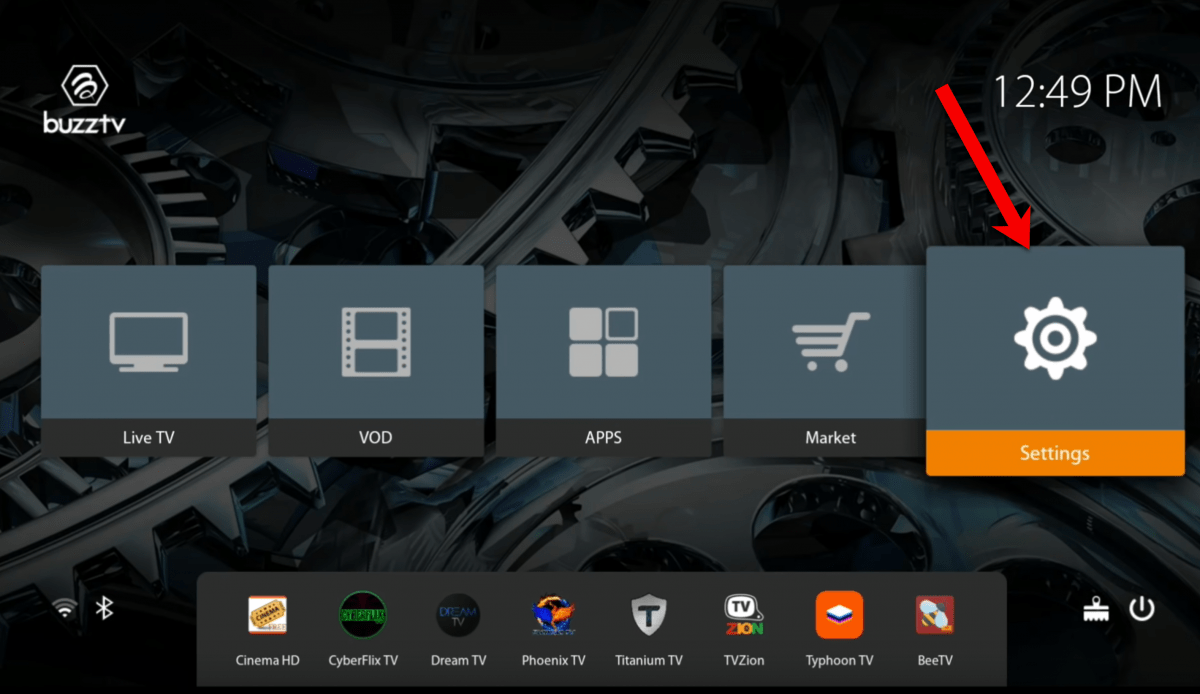
The screenshots below illustrate one version of the BuzzTV interface. Your menus may look slightly different depending on your model and installed software.
What Is the Built-In BuzzTV IPTV Player?
Many BuzzTV boxes include a dedicated IPTV application designed to organize live television, channel categories, and electronic program guide information where supported.
Depending on the device and player version, BuzzTV may support connection methods such as:
- Stalker Portal / MAC-based IPTV: Uses a portal URL and may require your device MAC address to be registered.
- Xtream Codes API: Uses a server URL, username, and password on supported player versions.
- M3U Playlist: Uses a playlist URL or compatible playlist configuration where supported.
For this tutorial, we'll focus on the portal URL and MAC address setup method shown in your BuzzTV screenshots.
You generally do not need to install an additional IPTV player when the built-in BuzzTV application supports your subscription's connection method.
How to Install IPTV on BuzzTV Box: Step-by-Step
Step 1: Turn On Your BuzzTV Box and Open Settings
Connect your BuzzTV device to your television using HDMI and make sure the device has an active internet connection through Wi-Fi or Ethernet.
- Turn on your BuzzTV box.
- Wait for the home screen to load.
- Open the built-in BuzzTV IPTV player if it is not already displayed.
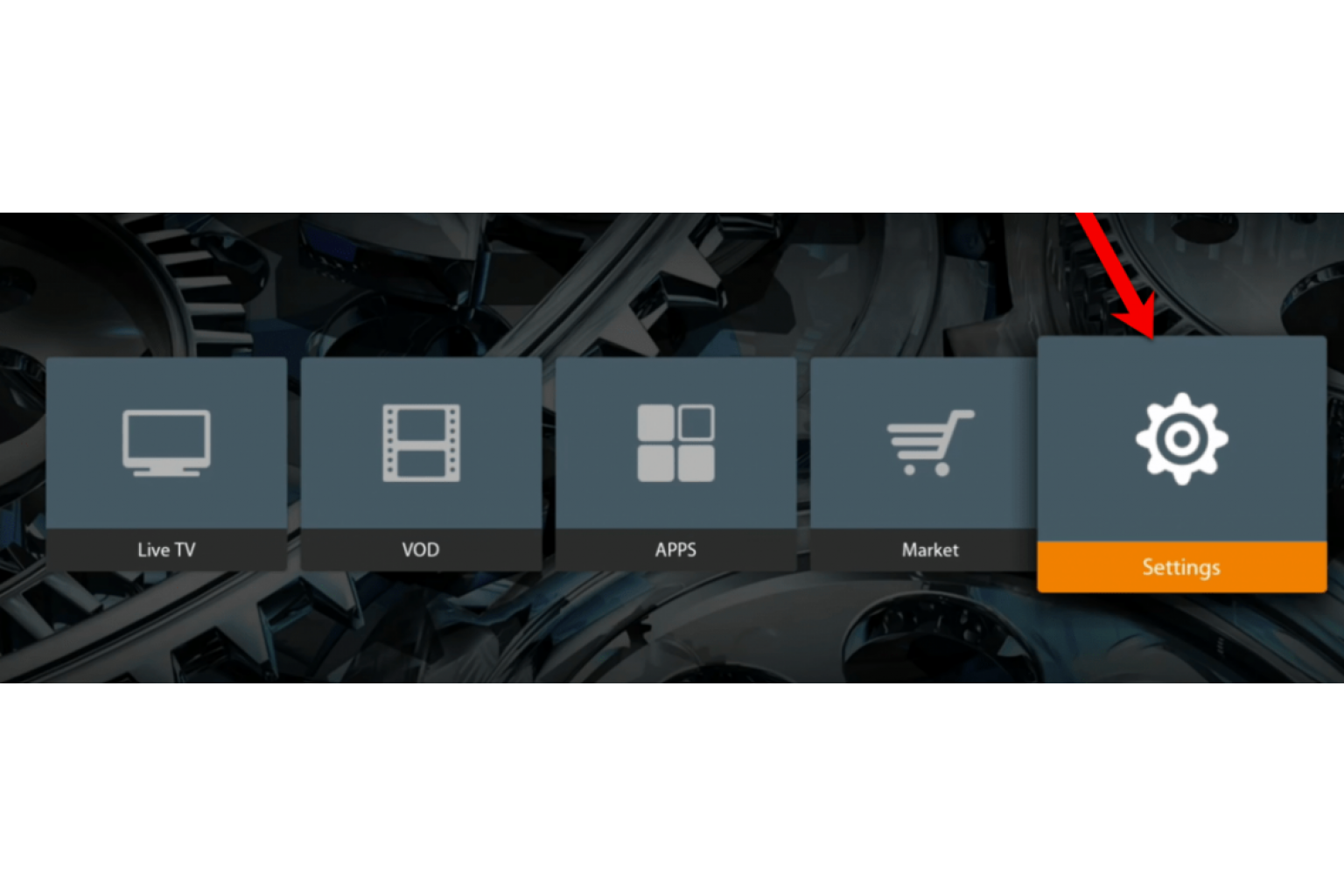
- Using your remote control, navigate to Settings.
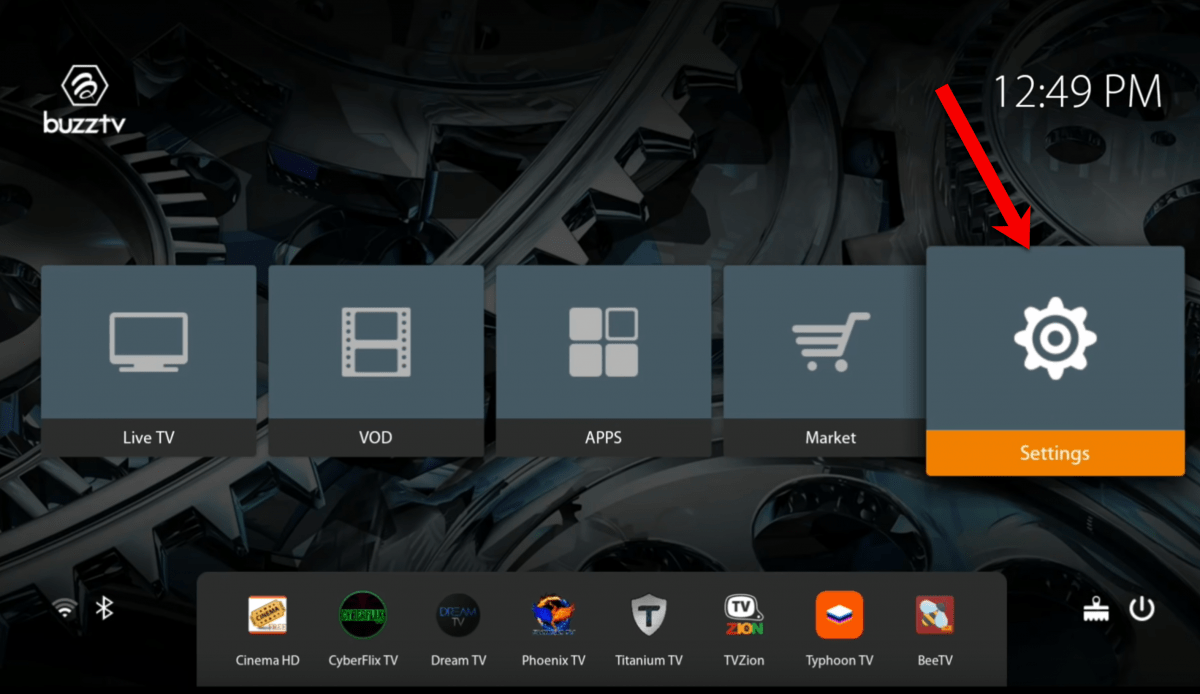
Tip: If your device uses a newer BuzzTV interface, look for a menu named Settings, Servers, Server Settings, or a similar connection-management option.
Step 2: Select the Server or Portal Settings
Inside the BuzzTV settings menu, locate the Server option.
- Open the server settings menu.
- Look for the option to add or edit an IPTV server.
- Select the appropriate portal-based connection method if your device offers multiple connection types.
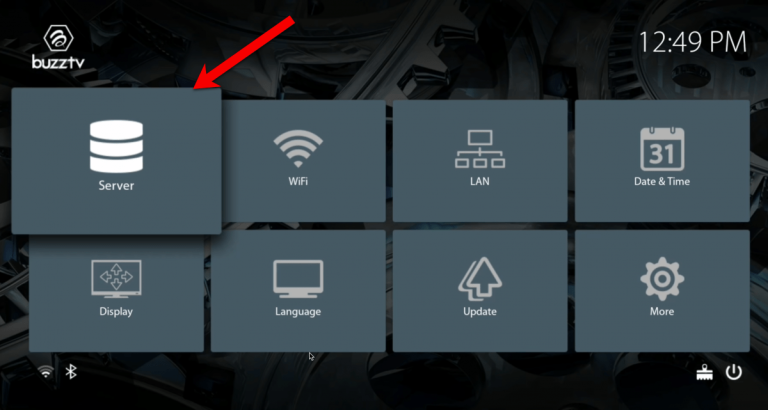
The available fields depend on the BuzzTV player version and selected connection method.
Step 3: Find Your BuzzTV MAC Address
For a MAC-based IPTV subscription, your provider may need to register the MAC address displayed by the BuzzTV player.
The MAC address is a device identifier commonly displayed as six groups of hexadecimal characters separated by colons.
For example, the format may look like 00:1A:79:XX:XX:XX. This is only a format example, not a real address to enter.
- Locate the MAC address shown in the BuzzTV server settings.
- Record the address exactly as displayed.
- Provide it to your IPTV service provider if MAC registration is required.
- Wait for your provider to confirm the account is configured.
Step 4: Enter Your IPTV Portal URL
After your provider confirms the required account setup, enter the official IPTV Portal URL supplied for your subscription.
- Select the portal URL or server address field.
- Enter the complete address supplied by your IPTV provider.
- Check that the address includes the correct HTTP or HTTPS prefix and port if required.
- Save the connection settings.
- Connect to the configured server.
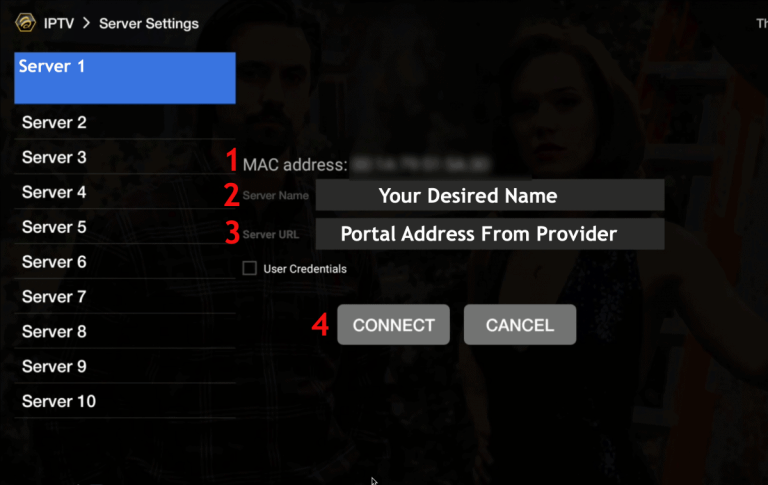
Do not use random portal addresses found online. The correct URL must be supplied or authorized by your IPTV provider.
Step 5: Load Your IPTV Channels
Once your BuzzTV device connects successfully, the player may begin loading the channel list and available electronic program guide information.
- Wait for the initial connection to complete.
- Allow the player to load the channel categories.
- Open a channel to test playback.
- Check whether the electronic program guide is available.
- Use the remote control to browse supported channels and categories.
Channel availability, EPG information, and playback quality depend on the IPTV subscription and the stream source.
Can You Use Xtream Codes IPTV on BuzzTV?
Some BuzzTV devices and player versions support Xtream Codes API connections in addition to MAC-based portals.
If your subscription uses Xtream Codes, the required information typically includes:
- Server URL
- Username
- Password
Open your BuzzTV player's server-management menu and check whether an Xtream Codes connection option is available.
If your player does not support your subscription's connection method, you may need a compatible alternative application or updated player software.
How to Fix BuzzTV IPTV Not Working
If your BuzzTV box cannot connect to your IPTV server, the problem may involve your internet connection, account authorization, portal URL, or device settings.
BuzzTV Cannot Connect to Server
- Confirm your internet connection is working.
- Check the portal URL for typing errors.
- Verify that your subscription is active.
- Restart your BuzzTV box.
- Ask your provider whether the server is experiencing maintenance.
BuzzTV MAC Address Not Authorized
If your device displays an account authorization or MAC-related error:
- Check the MAC address displayed in the BuzzTV player.
- Compare it with the address registered by your provider.
- Confirm that your subscription is active.
- Contact your provider if the account still cannot connect.
BuzzTV Channels Not Loading
If the server connects but channels do not appear, restart the player, refresh the channel list if supported, and check whether the provider has reported an outage.
BuzzTV IPTV Buffering or Freezing
Buffering can be caused by unstable Wi-Fi, network congestion, device performance, or problems with the stream source.
For a more stable connection:
- Use Ethernet when available.
- Move the device closer to your Wi-Fi router if using wireless internet.
- Restart your router and BuzzTV box when appropriate.
- Keep the BuzzTV software updated.
- Check whether buffering affects one channel or all channels.
BuzzTV IPTV Setup Checklist
| Requirement | What You Need |
|---|---|
| BuzzTV Device | Compatible BuzzTV box or streaming stick |
| Internet Connection | Stable Wi-Fi or Ethernet |
| IPTV Subscription | Active service with compatible connection method |
| MAC Address | Required for certain portal-based subscriptions |
| Portal URL | Official server address supplied by your provider |
| IPTV Player | Built-in BuzzTV player or compatible alternative |
IPTV Subscription for BuzzTV Boxes in Canada
If you already own a BuzzTV box and are exploring subscription options, make sure the service supports your device's connection method before purchasing.
Some subscriptions use Stalker Portal or MAC-based activation, while others use Xtream Codes API or M3U playlists.
For available subscription information, visit IPTV Canada Subscription and review the current options at SharkTV.ca.
Always confirm device compatibility, subscription duration, available connections, and activation requirements before ordering.
Frequently Asked Questions About BuzzTV IPTV
Do BuzzTV Boxes Support IPTV?
Yes. Many BuzzTV devices include a dedicated IPTV player and support compatible IPTV connection methods.
Do I Need to Install an IPTV App on BuzzTV?
Not always. Many BuzzTV devices include a built-in IPTV player. A separate application is only necessary when your preferred connection method or features are not supported by the installed player.
Where Can I Find My BuzzTV MAC Address?
For portal-based connections, the MAC address may be displayed in the BuzzTV player's server settings. Use the address requested by your IPTV provider.
Can I Use Xtream Codes on BuzzTV?
Some BuzzTV devices and player versions support Xtream Codes API. Check the connection options available on your device.
Can I Use TiviMate on BuzzTV?
Some Android-based BuzzTV devices may support compatible third-party IPTV applications. Availability depends on the device, operating system, and application requirements.
Why Is My BuzzTV IPTV Not Connecting?
Possible causes include an incorrect portal URL, inactive subscription, MAC authorization problem, internet connection issue, or temporary server outage.
Does BuzzTV Support 4K IPTV?
Some BuzzTV models support 4K video output. Actual 4K IPTV playback depends on the device, stream resolution, application, subscription, and internet connection.
Can I Use BuzzTV Without a Subscription?
You can use compatible device functions and applications without a paid IPTV subscription, but access to subscription-based television streams requires the appropriate service credentials and authorization.
Related IPTV Setup Guides
Explore these additional SharkTV.ca tutorials for other streaming devices and IPTV applications:
- How to Install IPTV on Amazon Firestick
- How to Set Up TiviMate IPTV Player
- How to Set Up STB Emulator IPTV
- How to Install IPTV on MAG Box
- How to Install IPTV on Apple TV
- How to Renew Your IPTV Subscription
Final Thoughts
Installing IPTV on a BuzzTV box is straightforward when you have the correct portal URL, subscription information, and device configuration.
For MAC-based IPTV services, the main steps are to open the BuzzTV player settings, locate your MAC address, complete any required provider registration, and enter the official IPTV portal URL.
Once the connection is established, you can browse the channels and features available through your subscription.
For other devices, explore the related setup tutorials above to learn about Firestick, TiviMate, STB Emulator, MAG receivers, and Apple TV.
Disclaimer: This guide is intended for authorized IPTV services. BuzzTV menus, supported applications, and connection methods vary by device model and software version. Content availability depends on the subscription and applicable distribution rights.
Related Products