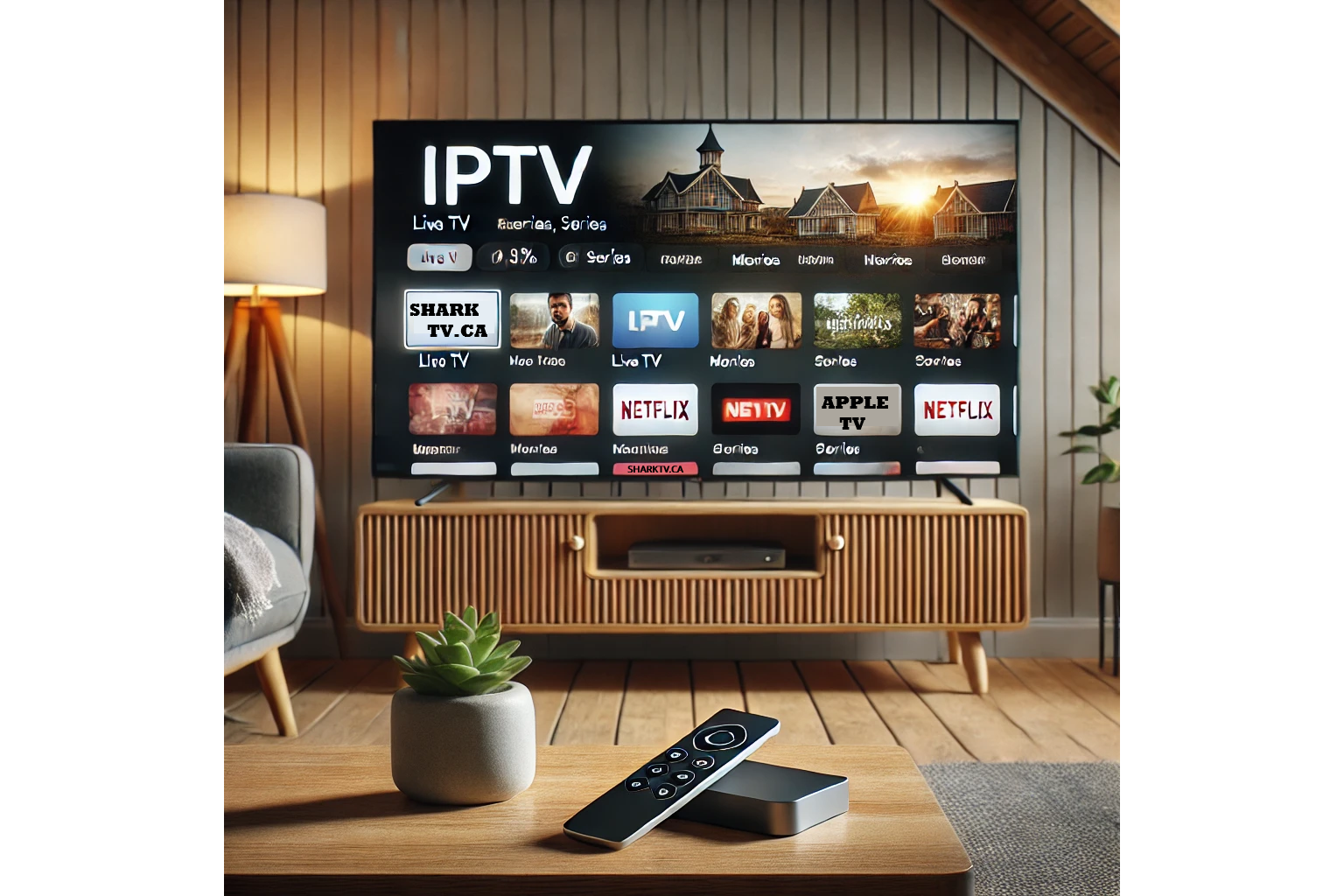
Want to learn how to install IPTV on Apple TV? Whether you own an Apple TV 4K or Apple TV HD, you can use compatible IPTV applications to watch live television, movies, TV series and other content included with your IPTV subscription.
This step-by-step Apple TV IPTV setup guide explains how to install an IPTV player, configure Xtream Codes or M3U playlists, set up a compatible Stalker portal application and troubleshoot common streaming problems.
If you are still choosing a service, visit SharkTV's Canadian IPTV website to explore available subscription options.
Can You Install IPTV on Apple TV?
Yes. Apple TV HD and Apple TV 4K support IPTV playback through compatible applications available in the Apple App Store. You do not need to jailbreak your device or modify its operating system.
To get started, you need an Apple TV with internet access, a compatible IPTV player and valid connection details from a service you are authorized to use.
Apple TV IPTV applications generally support one or more of these connection methods:
- Xtream Codes API: Server URL, username and password.
- M3U Playlist: A playlist URL containing available stream information.
- Stalker Portal: A compatible portal URL and provider-supported device activation.
Best IPTV Apps for Apple TV
Choosing the correct IPTV application is important because not every player supports every connection method. Here are two options to consider for Apple TV.
1. Smarters Player Lite – Xtream Codes & M3U
Smarters Player Lite is available for Apple TV and supports playlist-based media playback. Depending on the installed version, available login options may include M3U playlists and other supported account formats.
It is a useful option to check when your IPTV service provides an M3U playlist or Xtream Codes connection details. Confirm that your installed Apple TV version offers the required login method.
2. StbEmuTV Pro – Stalker Portal IPTV
StbEmuTV (Pro) is an Apple TV-compatible application designed for Stalker portal connections.
It can be suitable for IPTV subscriptions that use a portal URL and MAC-address-based activation. Confirm compatibility with your provider before purchasing the application.
How to Install IPTV on Apple TV Using Xtream Codes
If your IPTV provider supplies a server URL, username and password, you may be able to connect using Xtream Codes API login in a compatible Apple TV IPTV player.
Step 1: Install an IPTV Player
- Turn on your Apple TV and connect it to the internet.
- Open the App Store from the Apple TV home screen.
- Search for Smarters Player Lite or another compatible Xtream Codes player.
- Select the application and choose Get or the available installation option.
- Open the application after installation.
Step 2: Enter Your Xtream Codes Details
- Find the Xtream Codes API login option, if supported by your app version.
- Enter a name for your playlist or account.
- Enter the username supplied by your IPTV provider.
- Enter your IPTV password.
- Enter the complete server URL, including the correct protocol and port if provided.
- Save the account and wait for the available content to load.
Once connected, you can browse the live TV, movies, series and other sections supported by your subscription and IPTV application.
Important: Enter the server address exactly as provided. An incorrect URL, username, password or port can prevent your IPTV playlist from loading.
How to Set Up M3U IPTV on Apple TV
An M3U IPTV playlist is another common way to connect IPTV services to Apple TV. Instead of entering separate account credentials, you typically provide a playlist URL.
- Install an Apple TV IPTV player that supports M3U playlists.
- Open the application and select the playlist or URL import option.
- Choose the option to add a remote M3U playlist.
- Enter the M3U URL supplied by your IPTV provider.
- Save the playlist and allow the channel information to load.
- Open the available channel categories and test playback.
Some applications also support a separate EPG URL for television guide information. If your provider supplies one, add it through the application's guide settings.
How to Set Up Stalker IPTV on Apple TV
Stalker IPTV uses a different connection method from Xtream Codes. It commonly relies on a portal URL and MAC-address-based device authorization.
For Apple TV, one option is StbEmuTV Pro, which supports Stalker portal functionality.
Step-by-Step Stalker IPTV Setup
- Open the Apple TV App Store.
- Find and install StbEmuTV (Pro).
- Launch the application and open its portal or profile settings.
- Locate the MAC address or device identifier used by the application.
- Provide the required activation identifier to your IPTV provider.
- Enter the Stalker portal URL supplied by your provider.
- Save the configuration and complete the provider's activation process.
- Restart or reload the portal if necessary.
Once the device is authorized and the portal connection succeeds, the available television and VOD sections should appear.
Note: The MAC address used for Stalker activation may be generated or managed by the IPTV application and may differ from your Apple TV's physical network MAC address. Follow your provider's instructions.
Xtream Codes vs Stalker IPTV on Apple TV
Both connection methods can work with Apple TV, but they require different applications and account information.
| Feature | Xtream Codes | Stalker IPTV |
|---|---|---|
| Login Method | Username and password | Portal and device authorization |
| Server Details | Server URL | Stalker portal URL |
| Example App | Compatible Xtream Codes player | StbEmuTV Pro |
| Device Switching | Subject to provider limits | May require reactivation |
| Live TV and VOD | When supported | When supported |
If your service uses MAC-based activation, browse our Stalker IPTV server packages to explore that connection category.
How to Fix IPTV Not Working on Apple TV
If your Apple TV IPTV application cannot load channels, displays a login error or experiences buffering, try these troubleshooting steps.
1. Check Your Internet Connection
Make sure your Apple TV is connected to a stable Wi-Fi or Ethernet network. Test another streaming application to determine whether the issue affects your internet connection or only the IPTV player.
2. Verify Your IPTV Login Details
Double-check your username, password, server URL, M3U playlist or Stalker portal information. Even a small typing error can prevent the application from connecting.
3. Restart Your Apple TV
Restart the Apple TV and reopen your IPTV application. This can resolve temporary application or network problems.
4. Update Your IPTV Application
Check the App Store for available application updates. Older versions may contain playback problems or compatibility issues.
5. Check Your Subscription Status
Confirm that your IPTV subscription is active and that you have not exceeded the number of simultaneous connections allowed by your plan.
6. Fix Buffering and Freezing
If channels buffer frequently, test your internet connection, restart your router, try Ethernet when available and check whether the problem affects every channel or only specific streams.
If the issue continues, contact your IPTV provider with the application name and error message so the connection can be checked.
Frequently Asked Questions About Apple TV IPTV
Does Apple TV support Xtream Codes IPTV?
Yes. Apple TV can use Xtream Codes IPTV through applications that support Xtream Codes API login. Compatibility depends on the specific application and version.
Can I use an M3U playlist on Apple TV?
Yes. Several Apple TV media players support M3U playlists. You can add a compatible playlist URL supplied by your IPTV service.
Can I use Stalker IPTV on Apple TV?
Yes, with a compatible Stalker portal application such as StbEmuTV Pro and a provider-supported activation method.
Do I need to jailbreak Apple TV for IPTV?
No. Compatible IPTV applications can be installed directly from the Apple App Store without jailbreaking your Apple TV.
Can Apple TV play 4K IPTV channels?
Apple TV 4K supports 4K video playback, but IPTV picture quality depends on the source stream, application, network connection and subscription. Not every IPTV channel is available in 4K.
Is an IPTV player the same as an IPTV subscription?
No. An IPTV player is an application used to play compatible media streams. It generally does not include television channels or a subscription. You need separately obtained, authorized content or service access.
Choosing an IPTV Service for Apple TV
Before selecting an IPTV subscription for Apple TV, confirm whether the service supports Xtream Codes, M3U or Stalker portal connections. Also compare available programming, device compatibility, subscription durations and simultaneous connection limits.
Explore our IPTV server and package comparison to review available connection options.
Final Thoughts: Installing IPTV on Apple TV
Setting up IPTV on Apple TV is straightforward when you have the correct application and connection information. Xtream Codes services generally use a server URL with account credentials, M3U services use playlist URLs, and Stalker IPTV requires compatible portal software and device authorization.
For more information about available subscriptions and supported IPTV connection types, visit SharkTV.
Related Products