
Is your IPTV constantly buffering, freezing every few seconds, showing a black screen or failing to load channels? These are common streaming problems that can affect Amazon Firestick, Android TV, Smart TVs, MAG boxes, Formuler, BuzzTV and other IPTV devices.
The good news is that many IPTV playback problems can be fixed without replacing your subscription. Issues may come from your internet connection, Wi-Fi network, IPTV application, streaming device, server performance or account settings.
In this updated 2027 IPTV troubleshooting guide, we'll explain how to stop IPTV buffering, fix freezing live TV channels, troubleshoot sports and PPV streams, resolve movie playback errors and identify why your IPTV service isn't working.
If you're comparing subscription options, visit IPTV services in Canada to explore available packages and connection methods.
Why Does My IPTV Keep Buffering?
IPTV buffering happens when your streaming device cannot receive or process video data quickly enough for continuous playback. Your IPTV player may display a loading circle, pause repeatedly or stop playing altogether.
Common causes of IPTV buffering and freezing include:
- Slow or unstable internet connection
- Weak Wi-Fi signal or network interference
- High network congestion during peak hours
- IPTV server overload or temporary outages
- Outdated IPTV applications or device software
- Unsupported video codecs or player settings
- Too many simultaneous streaming connections
- Low device memory or insufficient processing power
- DNS, routing or other network connection problems
- Possible ISP traffic management
The first step is identifying whether the problem affects every channel, only certain channels, live sports, or Video-on-Demand content.
1. Check Your Internet Speed for IPTV Streaming
Before changing your IPTV settings, test your internet connection on the same device or network you use for streaming.
You can run a speed test using Google Fiber's internet speed test or another trusted testing service.

How Much Internet Speed Do You Need for IPTV?
The bandwidth required depends on the stream's actual bitrate, video resolution and number of devices using your connection. These are approximate starting points for a single stream:
- SD IPTV: Around 3–5 Mbps
- HD IPTV: Around 5–10 Mbps
- Full HD IPTV: Around 10–15 Mbps
- 4K IPTV: Around 20–35 Mbps or more
These are general estimates, not guaranteed requirements. High-bitrate streams may need more bandwidth. Multiple televisions, gaming, downloads and other household activity increase the total bandwidth needed.
A fast speed test doesn't always mean IPTV will work perfectly. Connection stability, packet loss, latency and routing to the streaming server also matter.
2. Use Ethernet Instead of Wi-Fi to Reduce IPTV Buffering
A weak Wi-Fi connection is one of the most common reasons IPTV freezes even when your internet plan offers plenty of speed.
Walls, distance from the router, neighbouring wireless networks and interference can reduce streaming stability.
For more consistent playback, connect your IPTV device directly to your router using an Ethernet cable whenever possible.
If you use an Amazon Firestick without a built-in Ethernet port, a compatible Ethernet adapter may help. Otherwise, try moving your router closer, improving signal coverage or testing a less congested Wi-Fi band.
3. Restart Your IPTV Device and Internet Router
If IPTV suddenly starts freezing or channels stop loading, restarting your equipment can clear temporary network and application problems.
- Close your IPTV application.
- Restart your Firestick, Smart TV or IPTV box.
- Restart your router using its normal restart function or manufacturer's instructions.
- Wait until your internet connection is restored.
- Open your IPTV application and test several channels.
If the issue continues, test a different application or streaming device to determine whether the problem is specific to your equipment.
4. Check Your IPTV Subscription and Connection Limits
Some IPTV subscriptions allow only one active stream at a time. If your account is already streaming on another device, additional connections may fail, disconnect or display playback errors.
Check whether your subscription includes one or multiple simultaneous connections. Close unused IPTV sessions and restart your player before testing again.
If your household needs multiple televisions streaming simultaneously, compare packages that specifically support additional connections.
5. Update Your IPTV Player and Device Software
Outdated applications can cause IPTV freezing, playback errors, black screens and channel loading problems.
Check for updates to your IPTV application and device operating system. Common players include:
- TiviMate
- IPTV Smarters
- XCIPTV
- STB Emulator
- IMPlayer
- Other compatible IPTV applications
Install updates from trusted sources and restart the application afterward. Make sure the updated version still supports your IPTV connection method.
6. Clear Your IPTV App Cache
Temporary application files can occasionally become corrupted or consume storage space, leading to sluggish menus, playlist loading errors and playback problems.
On many Android TV and Fire TV devices, you can clear the app cache through the device's application settings.
- Open your device's Settings.
- Find Applications or Apps.
- Select your IPTV player.
- Open the storage or application management section.
- Select Clear Cache, if available.
- Restart the IPTV application.
Important: Avoid selecting Clear Data or Clear Storage unless you have saved your login and playlist information. Those options may erase application settings and require you to configure the account again.
7. Why Do IPTV Sports Channels Keep Buffering?
Do your regular IPTV channels work normally while live sports IPTV streams freeze during hockey, football, basketball, soccer or PPV events?
Sports broadcasts can experience heavy demand, particularly during major live events. Problems may result from server congestion, source-stream instability, higher video bitrates or network issues.
If sports channels buffer while other channels work, try:
- Testing another available stream of the same event
- Switching to an available lower-resolution stream
- Restarting your IPTV player
- Testing your internet connection during the event
- Checking whether the same issue occurs on another device
- Contacting your IPTV provider to report the affected channel
Some internet providers use traffic-management policies, but sports buffering alone does not prove that your ISP is throttling IPTV. Server congestion and stream-source problems can produce similar symptoms.
8. Can a VPN Fix IPTV Buffering?
A VPN (Virtual Private Network) encrypts internet traffic and changes the network route used by your connection. In some situations, it may improve performance when a particular network route is experiencing problems.
However, a VPN does not automatically fix IPTV buffering. It may increase latency, reduce connection speed or create compatibility issues with some services.
If you already use a VPN, compare playback with the VPN enabled and disabled, where permitted by your service. Choose a nearby server for testing and follow your provider's terms and applicable rules.
If buffering happens with or without a VPN, investigate Wi-Fi stability, player settings and server performance before assuming your ISP is responsible.
9. Try a Different IPTV Media Player
Sometimes the problem is not the IPTV server but the application or video decoder used to play the stream.
Certain IPTV applications allow you to choose between an internal player and an external media player.
Depending on your device, available external players may include:
- VLC Media Player
- MX Player
- Nova Video Player
- Other compatible Android media players
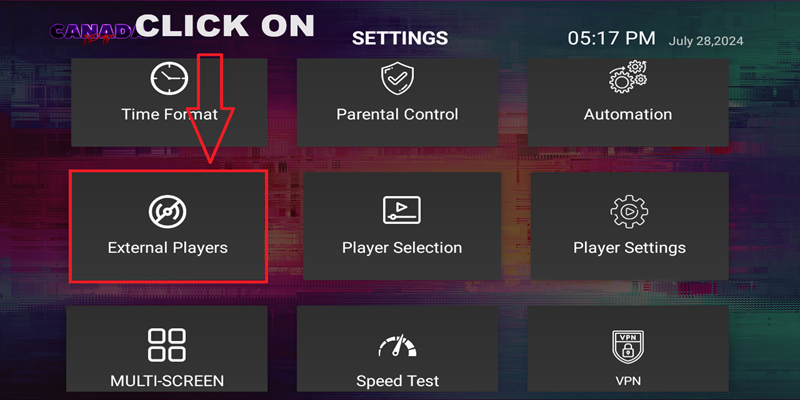
Open your IPTV application's playback settings and check whether an external player option is available.
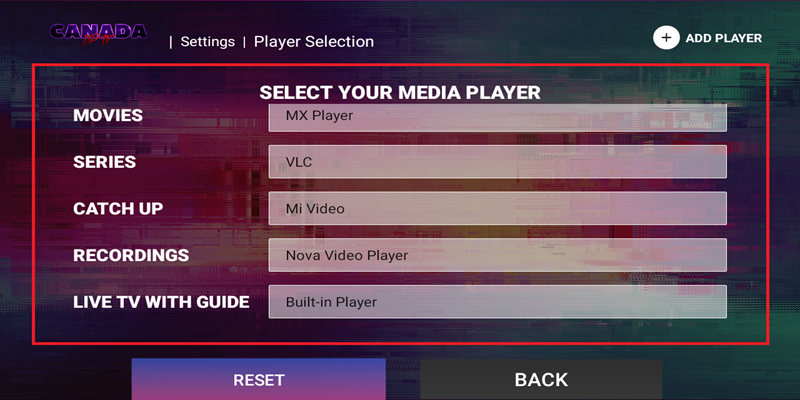
Test one alternative player at a time. Different players may handle video formats, audio codecs and hardware decoding differently.
10. IPTV Movies Buffer but Live TV Works
If live television works normally but IPTV movies or TV series keep stopping, freezing or failing to load, the issue may involve the VOD stream, video format, application decoder or server.
Try these troubleshooting steps:
- Test a different movie or episode.
- Try another compatible media player.
- Check the available hardware and software decoding settings.
- Update your IPTV application.
- Restart your streaming device.
- Report specific non-working titles to your provider.
If only one movie fails while other content works, the problem may be with that particular source rather than your internet connection.
11. How to Fix IPTV Black Screen and Channels Not Loading
An IPTV black screen can occur when a channel opens but no video appears, the stream fails to initialize or your application cannot decode the content.
Possible causes include:
- Expired or inactive IPTV subscription
- Incorrect Xtream Codes login information
- Outdated or incorrect Stalker portal URL
- Unsupported video or audio codec
- Temporary channel or server outage
- Corrupted application cache
- Network connection or DNS problems
- Device-specific playback incompatibility
First, test several channels. If only one channel displays a black screen, the issue may be related to that channel's source.
If every channel fails, verify your subscription, server details and internet connection. Avoid repeatedly changing settings without identifying the cause.
12. IPTV Freezing on Firestick, Android TV and IPTV Boxes
Different streaming devices can experience different IPTV performance problems.
IPTV Buffering on Amazon Firestick
On Firestick, check Wi-Fi signal strength, available storage, application updates and background activity. Restart the device and test a compatible alternative player if necessary.
IPTV Freezing on Android TV Boxes
On Android TV boxes, check available memory, device temperature, application cache and video decoder settings. Low-powered devices may struggle with high-bitrate streams.
IPTV Not Working on MAG Boxes
If a MAG box cannot load its portal, verify the portal URL, network connection, device authorization and subscription status. Check for supported firmware updates when appropriate.
IPTV Problems on Formuler and BuzzTV
For Formuler and BuzzTV devices, confirm the configured portal or playlist, update the supported player software and test alternative playback settings when available.
How to Tell if Your IPTV Server Is Down
Sometimes IPTV problems originate from the streaming server or content source rather than your home network.
Possible signs include multiple channels failing at once, the playlist not loading or the same issue appearing across several devices using the same service.
To narrow down the cause:
- Confirm your internet connection works with other applications.
- Restart your IPTV player and test again.
- Check whether only one channel or the entire service is affected.
- Test another compatible device or network if available.
- Contact your IPTV provider to ask about service interruptions.
If the service is experiencing an outage, changing local playback settings may not resolve the issue until the source or server is restored.
Frequently Asked Questions About IPTV Buffering
Why does my IPTV freeze every few seconds?
Frequent IPTV freezing can result from unstable Wi-Fi, packet loss, insufficient bandwidth, server congestion or player compatibility problems. Test your connection and compare multiple channels to identify the cause.
Why is IPTV buffering with fast internet?
A high download speed does not guarantee stable streaming. Packet loss, network congestion, poor routing, Wi-Fi interference and server performance can cause buffering even on fast internet connections.
What internet speed is best for IPTV?
Many HD streams work with approximately 5–15 Mbps per stream, while 4K streams may require around 20–35 Mbps or more. Actual requirements vary by bitrate, stream format and household usage.
Why does IPTV buffer during live sports?
Live sports may experience increased demand, higher-bitrate streams or temporary source and server congestion. Network problems can also contribute to buffering.
Will changing my IPTV player stop buffering?
Sometimes. A different player may handle certain video formats or decoding methods more efficiently. However, changing players will not repair an overloaded server or unstable internet connection.
Does a VPN make IPTV faster?
Not necessarily. A VPN can sometimes change an inefficient network route, but it may also reduce speed or increase latency. Results depend on the network and VPN connection.
Why are some IPTV channels not working?
Individual channels may be unavailable because of source interruptions, server maintenance, regional restrictions or temporary technical problems. If only certain channels fail, report their names to your provider.
Choosing an IPTV Server for More Consistent Streaming
When comparing IPTV subscriptions, consider more than channel counts or pricing. Device compatibility, server performance, available connection methods, support options and subscription terms all matter.
Our IPTV server and package options page lets you explore different services and compare their available features.
Before selecting a package, check whether it supports your preferred IPTV player, streaming device and required number of simultaneous connections.
Final Thoughts: How to Stop IPTV Buffering in 2027
If your IPTV keeps buffering, freezing or showing black screens, start by checking your internet stability, restarting your equipment and verifying your IPTV account settings.
Next, update your IPTV application, clear its cache when appropriate and test another compatible media player. If the problem affects only certain channels or continues across multiple devices, contact your IPTV provider for further investigation.
For more information about IPTV subscriptions and compatible streaming options, visit Shark iptv.