How to Install IPTV on Amazon Firestick in 2027
Want to learn how to install IPTV on Firestick? Amazon Fire TV devices are popular for streaming live television, movies, sports and TV series through compatible applications. With the right IPTV player and subscription, you can access supported entertainment directly from your television.
In this 2027 Firestick IPTV setup guide, we'll explain how to install the Downloader app, enable Developer Options on compatible Fire OS devices, install an IPTV player and configure your subscription. We've also included screenshots to make each step easier to follow.
Looking for compatible IPTV packages? Explore SharkTV's Canadian IPTV services to compare available streaming options.
Can You Install IPTV on Amazon Firestick?
Yes. Many Amazon Fire TV devices support IPTV applications, including players that use Xtream Codes, M3U playlists or Stalker portals. Some applications can be installed directly from the Amazon Appstore, while others require manual installation on compatible Fire OS devices.
Important for 2027: Not every Fire TV device supports Android APK installation. The steps below are intended for compatible Fire OS models. Devices running Amazon's newer Vega OS, such as the Fire TV Stick 4K Select, use a different application platform and cannot install standard Android IPTV APK files through the traditional Downloader method.
Why Use Firestick for IPTV Streaming?
Amazon Firestick is a convenient streaming device because it connects directly to your television and offers access to a variety of compatible entertainment applications.
- Simple navigation using the Fire TV remote
- Support for compatible IPTV players
- Live TV, movies and series through supported services
- HD and selected 4K playback on compatible models
- Wi-Fi connectivity and convenient app management
- Support for Xtream Codes, M3U and other formats through compatible apps
Actual streaming features depend on your Fire TV model, IPTV application and selected subscription.
Step 1: Install Downloader on Firestick
Downloader is a utility used to access download links and install supported files on compatible Fire OS devices. If your preferred IPTV player is already available in the Amazon Appstore, you can install it directly without using Downloader.
To install Downloader:
- Turn on your Firestick and connect it to the internet.
- From the Fire TV home screen, select Find > Search.
- Type Downloader using the on-screen keyboard.
- Select the Downloader application from the search results.
- Choose Get or Download to install it.
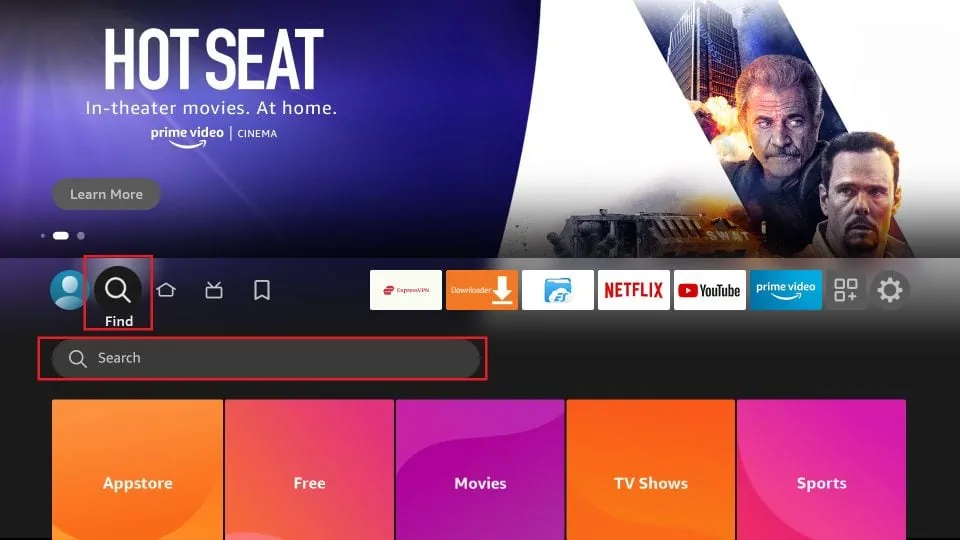
Once installed, Downloader will appear in your Fire TV application library.
Step 2: Open Firestick Settings
If your IPTV application requires manual APK installation, you may need to enable the appropriate installation permissions on a compatible Fire OS device.
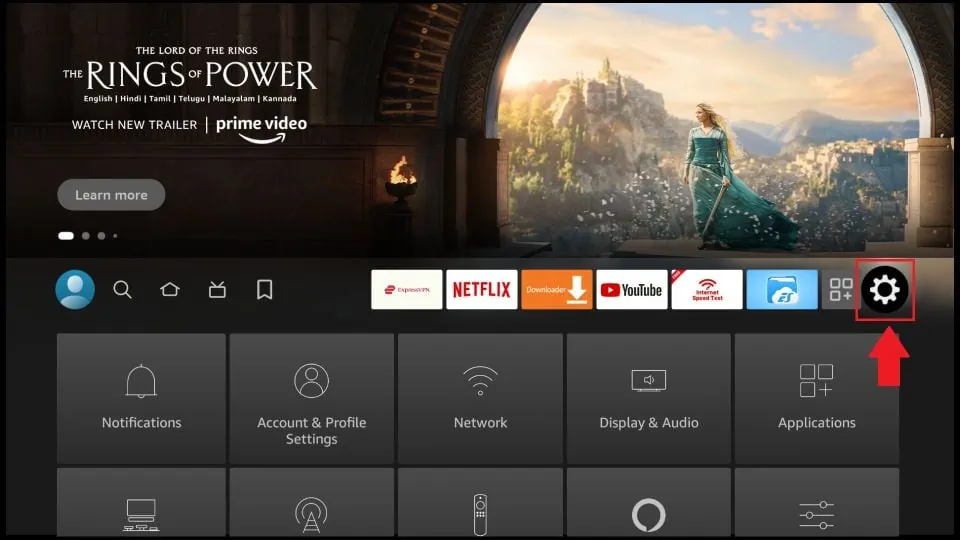
Return to the Firestick home screen and select the Settings gear icon.
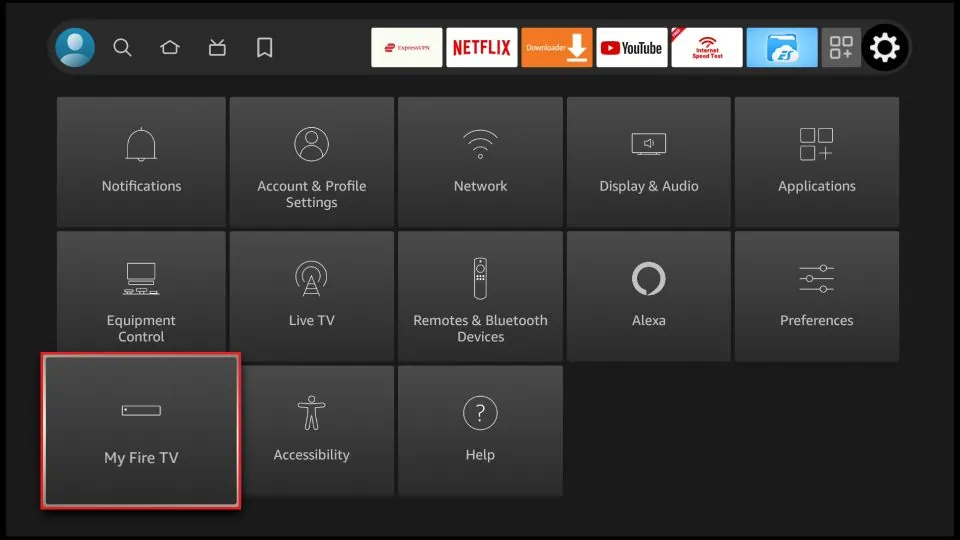
Step 3: Select My Fire TV
Inside Settings, scroll down and select My Fire TV. On some Fire TV devices, this section may be called Device & Software.
Step 4: Enable Firestick Developer Options
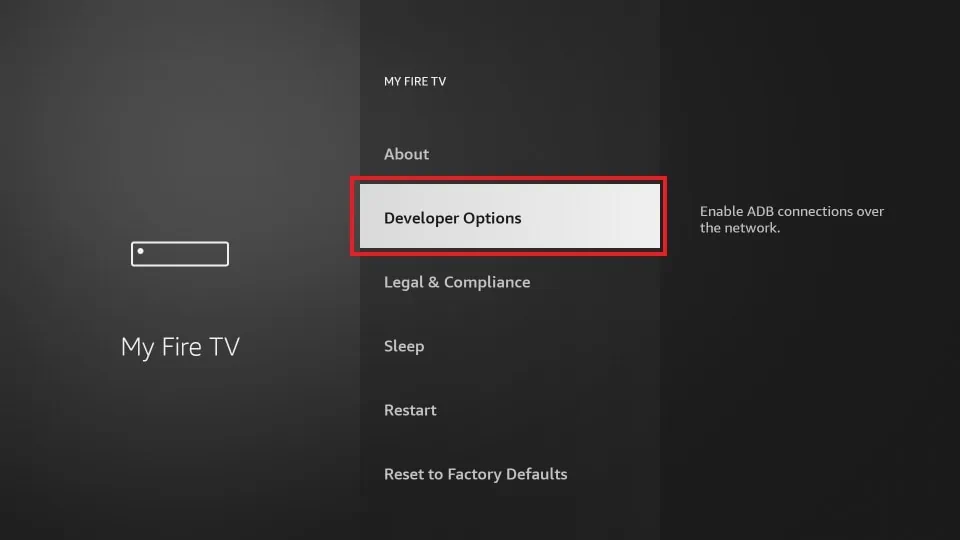
On compatible Fire OS devices, the Developer Options menu contains settings related to application installation and device development.
If Developer Options is already visible, open it and continue to the next step.
If Developer Options is hidden:
- Open My Fire TV > About.
- Highlight your Fire TV device name.
- Press the center Select button on your remote seven times.
- Return to the previous menu.
- Open Developer Options if it becomes available.
Note: These traditional APK installation steps do not apply to every Fire TV operating system. If your device uses Vega OS or does not provide the required installation permission, use applications supported by that device instead.
Step 5: Allow Installation From Unknown Apps
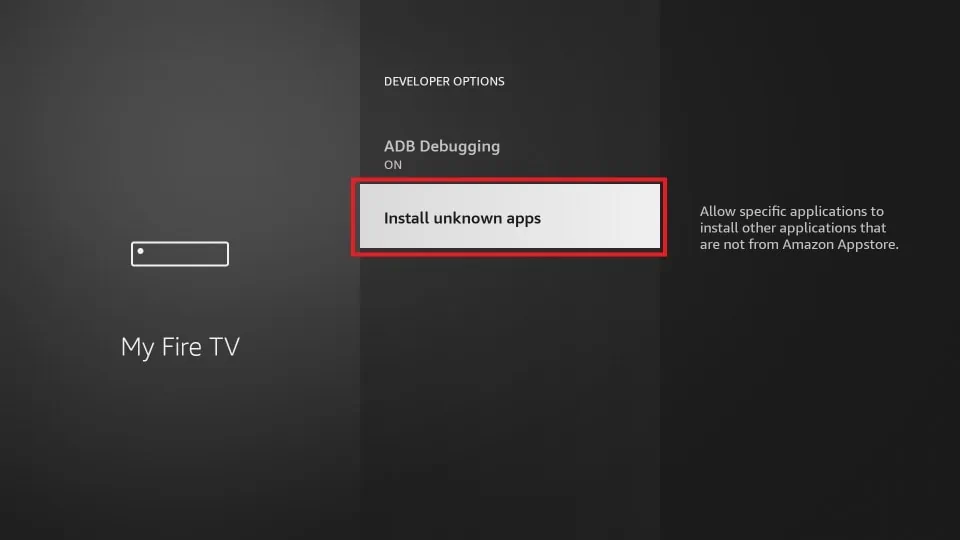
On compatible Fire OS devices, open Developer Options and select Install Unknown Apps.
Some older versions display Apps from Unknown Sources instead. Menu names and permission controls can vary depending on your Fire OS version.
Only enable installation permissions when necessary, and install applications from sources you trust.
Step 6: Enable Downloader Installation Permission
If your Fire OS device displays a list of applications allowed to install APK files, locate Downloader and enable its installation permission.
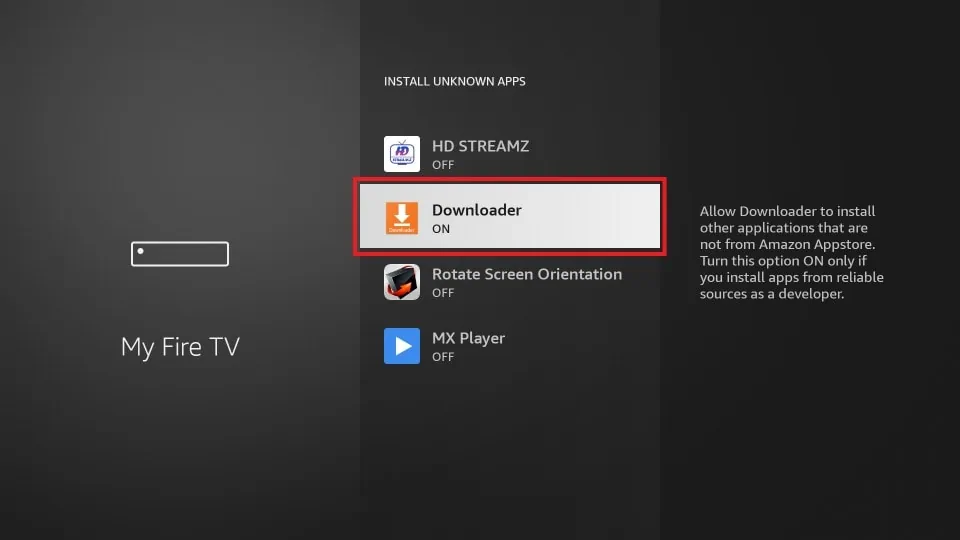
Your compatible Fire OS device can now install supported APK files through Downloader when permitted by the operating system.
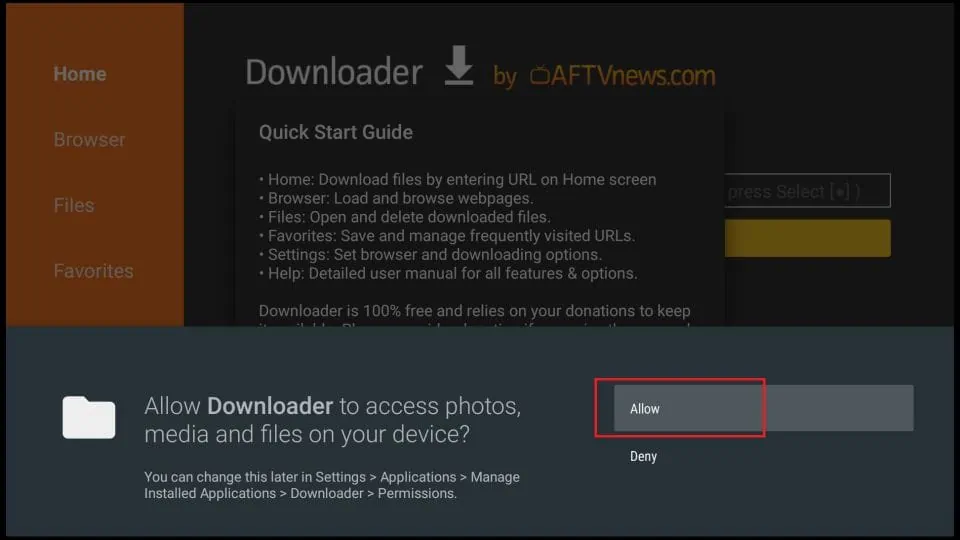
Step 7: Open Downloader and Allow Permissions
Launch Downloader from your application library. When opening it for the first time, the application may request access to files or storage.
Review the requested permissions and allow those needed for downloading and installing files.
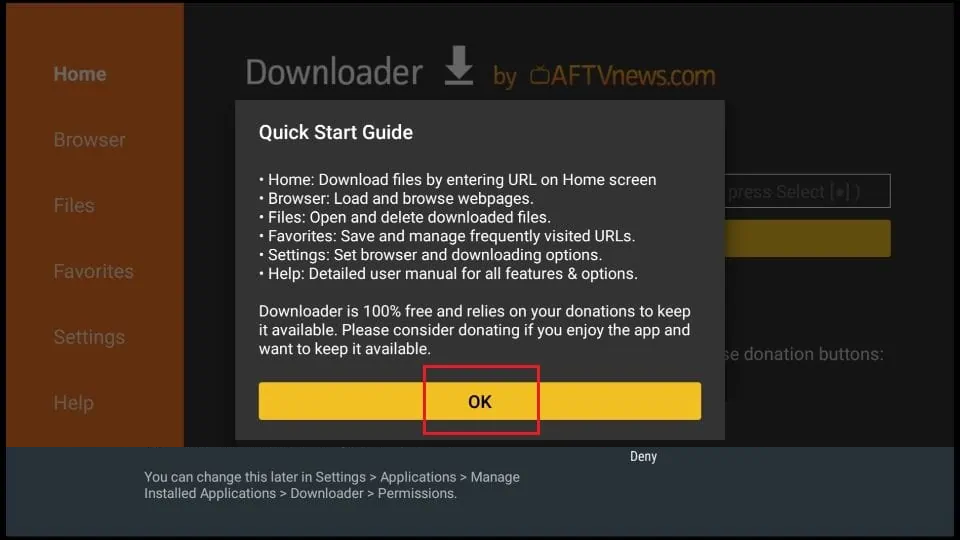
If the Downloader Quick Start Guide appears, select OK to continue.
Step 8: Download and Install Your IPTV Application
After opening Downloader, you can enter a trusted application download URL or a Downloader short code supplied by your IPTV application provider.
- Open the Downloader application.
- Select the URL or search field.
- Enter the verified download link or Downloader code.
- Select Go to access the download.
- Review the source and confirm it is the correct application.
- If supported, select Install when the installation screen appears.
- Open the IPTV player after installation.
For security, avoid unknown APK websites, unofficial modified applications and unverified Downloader codes. After installation, you can disable Downloader's unknown-app installation permission if it is no longer needed.
Popular IPTV Apps for Amazon Firestick
Several IPTV players are commonly used on compatible Fire OS devices. Application availability and supported connection methods vary.
- IPTV Smarters: Supports compatible playlist and account-based IPTV connections.
- TiviMate: A television-focused IPTV player supporting compatible playlist services.
- XCIPTV: An IPTV player used with supported server connections.
- STB Emulator: Designed for compatible Stalker portal connections.
- IMPlayer: An IPTV player offering playlist management features.
- Sparkle TV: A media player supporting selected IPTV connection formats.
- Perfect Player: A playlist-based IPTV application.
The best IPTV app for your Firestick depends on the connection format provided by your subscription and the applications supported by your device.
Step 9: Configure Your IPTV Subscription
Once your IPTV application is installed, open it and choose the connection method supported by your service.
Xtream Codes IPTV Setup
For Xtream Codes IPTV, your provider typically supplies:
- Server URL
- Username
- Password
Enter these details into an IPTV player that supports Xtream Codes API login. Save the account and allow the available channels and VOD information to load.
M3U IPTV Setup
For M3U IPTV, select the playlist import option in your IPTV player and enter the M3U URL supplied by your provider.
Some services also provide an EPG URL for television guide information.
Stalker Portal IPTV Setup
For Stalker IPTV, use a compatible portal application and follow your provider's activation instructions. This commonly involves entering a portal URL and registering an application-specific MAC address or device identifier.
The connection method determines which IPTV player and setup process you need.
Common Firestick IPTV Installation Problems
Developer Options Not Showing
On supported Fire OS devices, open Settings > My Fire TV > About and press the Select button on the device name seven times. If the required installation options remain unavailable, confirm your Fire TV model and operating system.
Downloader Cannot Install the APK
Check that your device supports Android APK installation, Downloader has the required permission and the APK is compatible with your Fire OS version. Vega OS devices cannot use standard Android APK installation through Downloader.
IPTV App Won't Open
Restart your Firestick, check for application updates and confirm the installed version supports your device. An incompatible APK may install incorrectly or fail to launch.
IPTV Channels Are Not Loading
Verify your IPTV username, password, playlist URL or portal details. Check your subscription status and confirm that your account has not exceeded its allowed simultaneous connections.
IPTV Buffering or Freezing
Buffering may be related to network congestion, Wi-Fi signal strength, application performance or the source stream. Try restarting your router, moving closer to your Wi-Fi access point or using a supported Ethernet adapter.
For more troubleshooting tips, read our IPTV buffering and freezing troubleshooting guide.
Frequently Asked Questions About Firestick IPTV
Do I Need Downloader to Install IPTV on Firestick?
Not always. If your IPTV player is available in the Amazon Appstore, you can install it directly. Downloader is commonly used for manual installation of compatible APK files on supported Fire OS devices.
Can I Install IPTV on Fire TV Stick 4K?
Many Fire TV Stick 4K models support IPTV applications. However, installation options depend on the exact model and operating system. Fire TV Stick 4K Select uses Vega OS and does not support traditional Android APK installation.
Can I Use Xtream Codes on Firestick?
Yes. Compatible IPTV players can connect using a server URL, username and password supplied by your IPTV provider.
Does Firestick Support Stalker IPTV?
Compatible Fire OS devices can use Stalker portal applications when supported by the selected player and IPTV provider. Device activation requirements vary.
Can Firestick Stream IPTV in 4K?
Compatible Fire TV 4K models can play supported 4K content. Actual IPTV picture quality depends on the source stream, application, device capabilities and internet connection.
Is It Safe to Install IPTV Apps Using Downloader?
Downloader is a download utility, but the safety of an installed application depends on its source and contents. Use verified download links, avoid modified APK files and review installation permissions.
How to Choose an IPTV Service for Firestick
Before selecting an IPTV subscription, compare the supported connection formats, compatible applications, available programming, streaming quality and subscription durations.
Explore our IPTV server and package comparison to review available services and connection options.
Final Thoughts: Installing IPTV on Firestick in 2027
Installing IPTV on Amazon Firestick can be straightforward when your device supports the selected application. Start by checking your Fire TV operating system, choose a compatible IPTV player and follow the appropriate installation method.
For compatible Fire OS devices, Downloader can help install supported IPTV APK files. Once your application is ready, configure Xtream Codes, M3U or Stalker IPTV using the connection details provided with your subscription.
Visit SharkTV.ca to explore available subscription options for compatible streaming devices.
Related Products