
Want to learn how to setup IPTV on a MAG Box? This updated 2027 installation guide explains how to connect your Infomir MAG device to the internet, locate its MAC address, enter your IPTV portal URL, and load your television channels.
Many Infomir MAG receivers support portal-based IPTV services, where the provider authorizes your device using a MAC address and supplies a portal URL. Once the account is activated and the portal is configured correctly, the device can connect to the IPTV service.
Whether you are setting up a MAG420, MAG520, MAG522, MAG524, or another compatible model, this tutorial covers the general process. Menu names and available options may vary depending on the device firmware and operating system.
MAG Boxes Compatible With This IPTV Guide
This tutorial covers the general setup process for several Infomir MAG devices, including:
- MAG500A
- MAG520w3
- MAG522w3
- MAG524w3
- MAG540w3
- MAG420
- MAG522
Infomir has produced MAG devices using different operating systems and middleware environments. Some use Linux-based software, while certain newer models use Android-based platforms.
The screenshots below show a traditional MAG portal configuration interface. Newer models may use different menus or require a different compatible IPTV application.
What Is a MAG Box and How Does IPTV Work?
A MAG Box is a media receiver designed to connect to a television and access supported streaming services over an internet connection.
For traditional portal-based IPTV configurations, the device typically uses:
- MAC Address: A device identifier used for account registration on compatible services.
- IPTV Portal URL: The server address provided by your IPTV provider.
- Internet Connection: Ethernet or supported Wi-Fi connectivity.
- Active Subscription: An authorized IPTV account configured for your device.
Unlike IPTV applications that use Xtream Codes usernames and passwords, many traditional MAG portal setups identify the device through a registered MAC address.
Before Setting Up IPTV on Your MAG Box
Find Your MAG Box MAC Address
Traditional Infomir MAG devices often use MAC addresses beginning with 00:1A:79, but you should not assume every model or software configuration uses this prefix.
Check the actual MAC address displayed on your device or its label. It may look similar to:
Example format only — not a real MAC address.
If your IPTV provider uses MAC-based activation, provide the correct identifier requested by the provider and wait for confirmation that your subscription is ready.
How to Setup IPTV on MAG Box in 10 Easy Steps
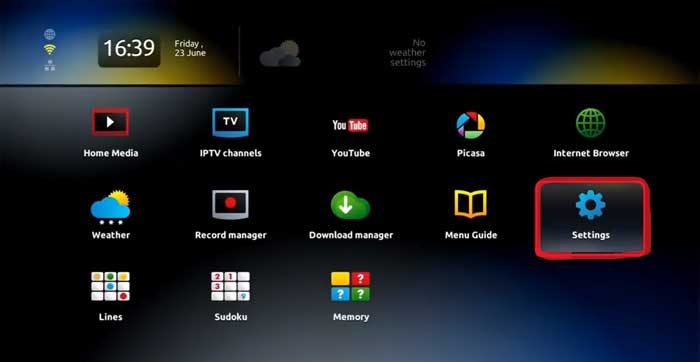
Step 1: Open Settings on Your MAG Box
Connect your MAG device to your television using HDMI and turn on the receiver.
- Wait for the MAG home screen to appear.
- Using the remote control, navigate to Settings.
- Press OK to open the settings menu.
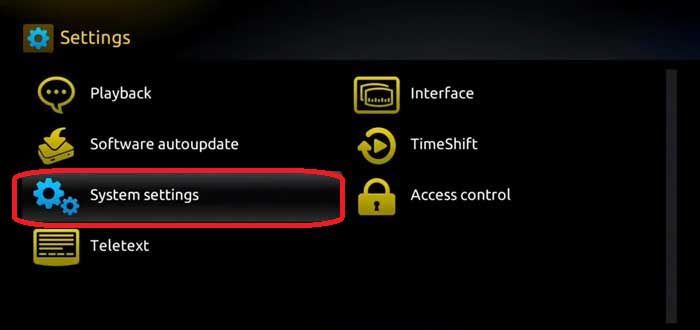
Step 2: Select System Settings
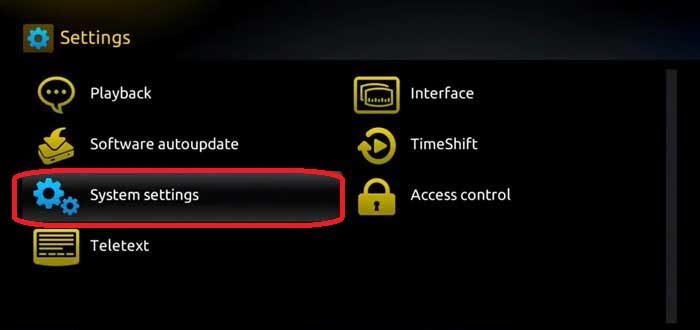
Inside the Settings menu, find and open System Settings.
This section contains the network and portal configuration options on many traditional MAG receivers.
Step 3: Connect Your MAG Box to the Internet
Before adding an IPTV portal, make sure your MAG Box has an active internet connection.
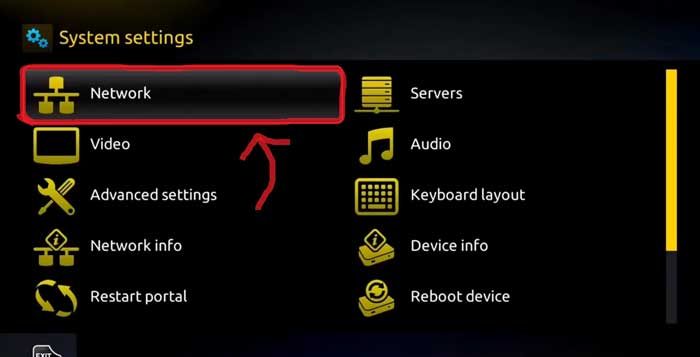
- Open Network inside System Settings.
- Select a supported network connection.
- For Ethernet, connect your device directly to the router using a network cable.
- For Wi-Fi, choose your wireless network and enter its password if your MAG model supports Wi-Fi.
- Confirm the device has established a connection.
Tip: Ethernet is often preferable for stationary IPTV receivers because it can reduce problems caused by weak or congested Wi-Fi signals.
Step 4: Locate and Register Your MAC Address
Find the MAC address displayed on your MAG device or its network information screen.
- Locate the MAC address requested by your IPTV provider.
- Record the complete address exactly as displayed.
- Send it to your provider if registration is required.
- Wait for confirmation that your IPTV subscription has been activated.
Step 5: Return to System Settings
After confirming your internet connection and completing any required MAC registration, return to the main System Settings menu.
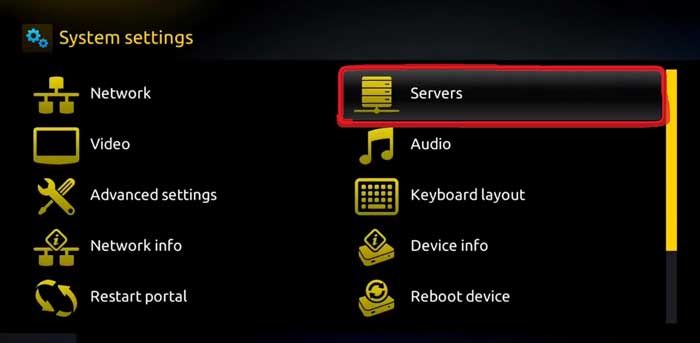
Step 6: Open the Servers Menu
Inside System Settings, select Servers if that option is available on your MAG firmware.
This menu is used to manage the IPTV server or portal connection on many traditional MAG devices.
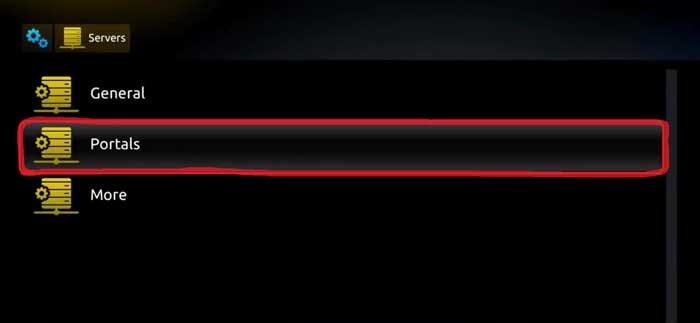
Step 7: Select Portals
Inside the Servers menu, open Portals.
Depending on your MAG firmware, you may see fields such as Portal 1 Name, Portal 1 URL, Portal 2 Name, or Portal 2 URL.
Step 8: Enter the IPTV Portal Name and URL
Your IPTV provider should supply the correct portal address for your subscription.
- Select the Portal 1 Name field.
- Enter a recognizable name if required.
- Select Portal 1 URL.
- Enter the complete official IPTV portal URL supplied by your provider.
- Check the address carefully for typing errors.
- Save or confirm the portal settings.
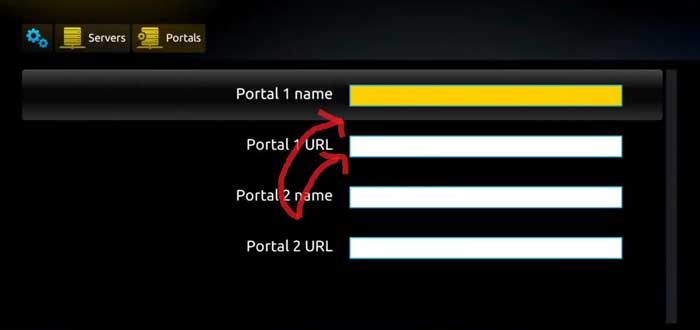
Important: The portal name is typically a label, while the portal URL must match the server address supplied by your IPTV provider.
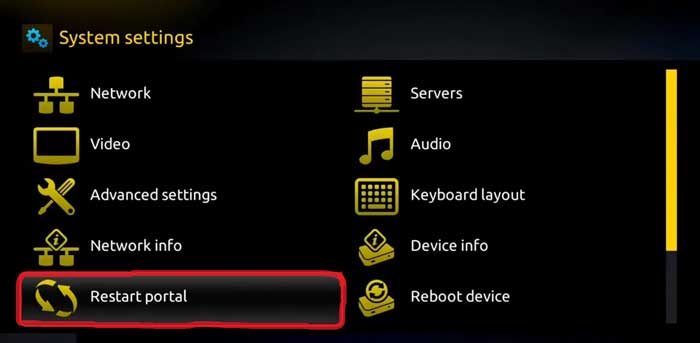
Step 9: Restart the IPTV Portal
After saving your portal information, return to the appropriate menu and select Restart Portal if available.
Some MAG devices may require a full device restart for the updated configuration to take effect.
Step 10: Wait for IPTV Activation and Channel Loading
When your MAG Box restarts the portal, it will attempt to connect to the configured IPTV server.
If the portal address is correct, the device is authorized, and the server is available, the IPTV interface should begin loading.
You may see a loading indicator while the device connects.
- Wait for the portal to finish loading.
- Check whether the IPTV interface appears.
- Open the available live television section.
- Select a channel to test playback.
- Check whether the EPG and other supported features are available.
How to Fix MAG Box IPTV Not Working
If your MAG device fails to load the IPTV portal, several common issues may be responsible.
MAG Box Portal Not Loading
- Check that the internet connection is active.
- Verify the portal URL is correct.
- Confirm the subscription is active.
- Restart the MAG device.
- Contact your provider to check server availability.
MAG Box Authorization or MAC Address Error
If your MAG device displays an authorization error, confirm that the correct MAC address is registered with your IPTV provider.
Account restrictions, inactive subscriptions, or unsupported portal configurations may also cause authorization problems.
MAG Box Shows a Black Screen
If the portal loads but a channel displays a black screen, try another channel and restart the stream if supported.
If only one channel is affected, the problem may involve that particular stream. If all channels are affected, check the account, application, and network connection.
MAG Box IPTV Buffering or Freezing
Buffering can result from network congestion, weak Wi-Fi, device limitations, or temporary stream problems.
To improve connection stability:
- Use Ethernet where possible.
- Restart your router and MAG receiver when appropriate.
- Reduce unnecessary network activity.
- Keep the device firmware updated using official updates.
- Check whether buffering occurs on all channels.
MAG Box IPTV Setup Checklist
| Requirement | Details |
|---|---|
| MAG Receiver | Compatible Infomir device |
| Internet | Stable Ethernet or supported Wi-Fi |
| MAC Address | Correct identifier for provider activation |
| Portal URL | Official address supplied by provider |
| Subscription | Active and compatible IPTV account |
IPTV Subscription for MAG Boxes in Canada
If you already own an Infomir MAG receiver, choose a subscription that supports your device's connection method.
Traditional MAG portal configurations often require a Stalker-compatible IPTV service rather than a standard Xtream Codes login.
Explore available Stalker IPTV subscriptions and confirm compatibility with your specific MAG model before ordering.
For devices using supported Xtream Codes or M3U applications, you can also review Xtream Codes API and M3U IPTV options.
Frequently Asked Questions About MAG Box IPTV
Do MAG Boxes Support IPTV?
Yes. Many Infomir MAG devices are designed to work with compatible IPTV middleware and portal-based services.
Do I Need an IPTV App for MAG Box?
Traditional MAG receivers often include built-in portal functionality. Some newer models use different operating systems and may require a compatible IPTV application.
Where Can I Find My MAG Box MAC Address?
The MAC address is commonly available on the device label or in its network and system information menus.
What Is an IPTV Portal URL?
An IPTV portal URL is the server address used by a compatible MAG device to connect to the provider's IPTV platform.
Can I Use Xtream Codes on MAG Box?
It depends on the MAG model, operating system, and installed application. Traditional portal-based MAG interfaces generally use portal URLs, while certain compatible applications may support Xtream Codes.
Why Is My MAG Box Not Connecting?
Common causes include an incorrect portal URL, inactive subscription, unregistered MAC address, internet connection problem, or temporary server outage.
Does MAG Box Support 4K IPTV?
Some MAG models support 4K output. Actual 4K playback depends on the device, video format, available stream, subscription, and internet connection.
Can I Use MAG Box Without IPTV Subscription?
Some device features may work without a paid subscription, but subscription-based IPTV channels require an appropriate authorized service.
Related IPTV Setup Guides
Explore more SharkTV.ca tutorials for other IPTV devices and applications:
- How to Install IPTV on Amazon Firestick
- How to Setup TiviMate IPTV Player
- How to Setup STB Emulator IPTV
- How to Install IPTV on BuzzTV Box
- How to Install IPTV on Apple TV
- How to Renew Your IPTV Subscription
Conclusion: Start Watching IPTV on Your MAG Box
Setting up IPTV on an Infomir MAG Box is straightforward when your device supports the correct portal system and your provider has activated the subscription.
The most important steps are connecting your device to the internet, registering the correct MAC address when required, entering the official portal URL, and restarting the portal.
Once the connection is successful, your MAG Box can display the live television channels and other features included in your authorized subscription.
Disclaimer: This guide is intended for authorized IPTV services. MAG device interfaces, connection methods, and supported features vary by model and firmware version. Content availability depends on the service and applicable distribution rights.
Related Products