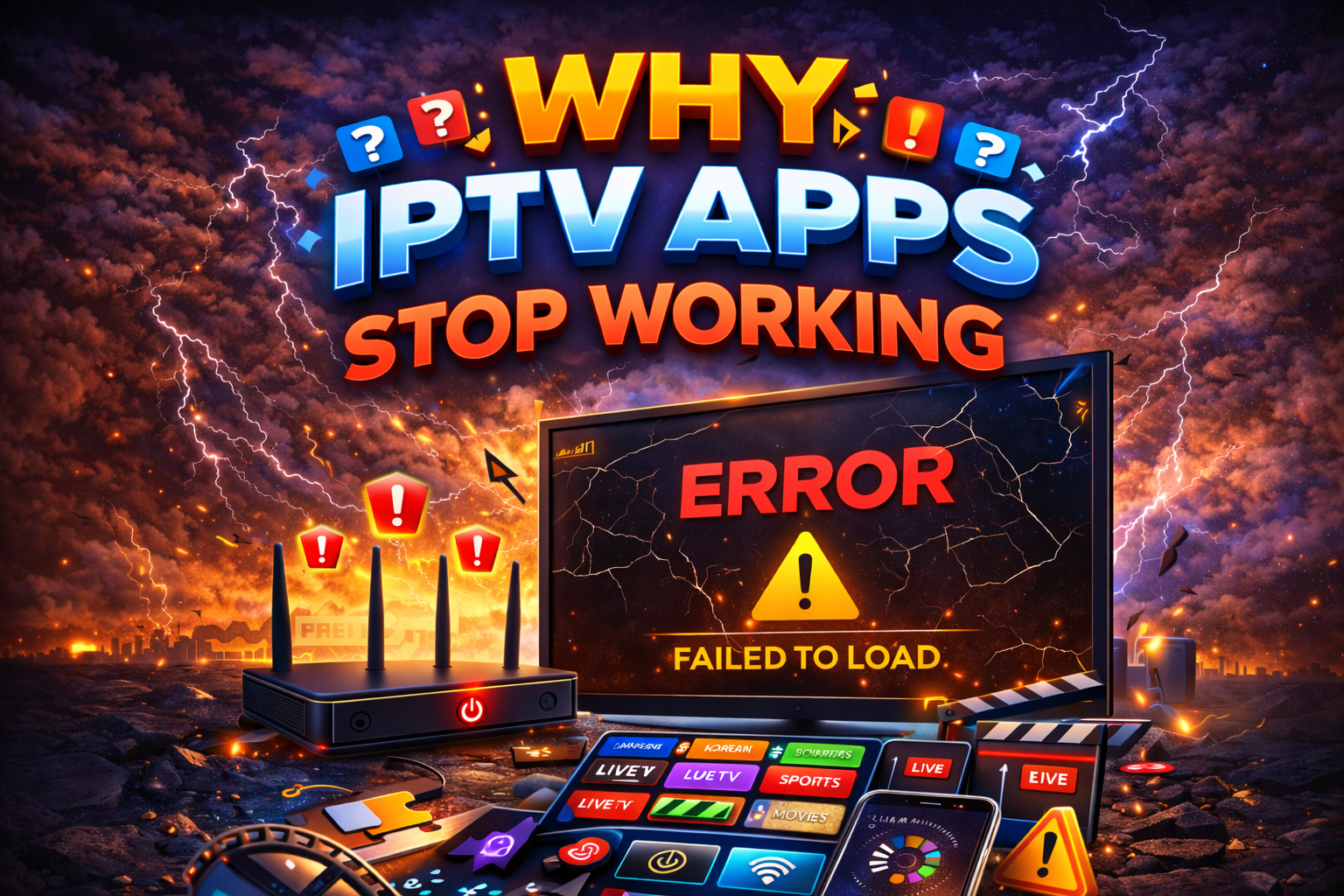
If your IPTV app suddenly stops working, fails to load, shows a connection error, or no longer displays channels, the problem is not always the IPTV service itself. In 2026, IPTV apps can stop working for several reasons, including app updates, device compatibility issues, expired subscriptions, incorrect login details, network problems, or changes made by the IPTV provider.
Before replacing your app or purchasing a new subscription, it is important to identify where the problem is coming from. Customers using IPTV service in Canada should first check the app, device, internet connection, and account details separately so the issue can be diagnosed correctly.
Why Do IPTV Apps Suddenly Stop Working?
An IPTV app is only one part of the complete streaming setup. The app connects your device to the IPTV service using login information such as Xtream Codes, an M3U playlist, or a Stalker portal.
If any part of that connection changes or stops working, the app may appear to be broken even when the application itself is functioning normally.
Common causes include outdated apps, expired subscriptions, incorrect portal information, server changes, device updates, weak internet connections, damaged app data, or temporary service problems.
1. Your IPTV Subscription May Have Expired
One of the first things to check is the expiry date of your IPTV subscription. When a subscription expires, the app may continue opening normally but fail to load live channels, movies, or TV series.
Depending on the service, you may see messages such as connection failed, authorization failed, invalid login, account expired, or no channels available.
If your IPTV worked normally before and suddenly stopped around your renewal date, confirm that the account is still active before changing the application or device settings.
2. Your IPTV Login Details May Have Changed
Some IPTV providers occasionally change server addresses, portal URLs, or other connection information. If the old information remains saved inside your IPTV app, the application may no longer connect.
For Xtream Codes services, check the server URL, username, and password. For M3U services, confirm that the playlist URL is still valid. For Stalker or MAC-based services, make sure the portal URL and registered MAC address are correct.
A small spelling mistake, missing character, or outdated portal address can prevent the service from loading completely.
3. The IPTV App May Be Outdated
Older versions of IPTV applications may stop working correctly after changes to a device operating system or app platform.
Smart TVs, Android devices, Firestick, Apple TV, and other streaming platforms regularly receive software updates. An IPTV app that worked for years may eventually become unstable if it is no longer maintained by the developer.
Check whether a newer version of the app is available. If the developer has discontinued the application, you may need to install another compatible IPTV player.
4. A Device Update Can Cause Compatibility Problems
Sometimes the IPTV app does not change at all, but the television or streaming device receives a major system update.
After an operating system update, older applications may experience login problems, freezing, crashing, missing permissions, or difficulty connecting to external servers.
If your IPTV stopped working immediately after a device update, restart the device first and then check whether the IPTV app also has an available update.
5. The App Cache or Stored Data May Be Corrupted
IPTV apps store temporary files, channel information, login data, and other settings on your device. Over time, this data can become corrupted and cause unusual problems.
Symptoms may include the app opening slowly, crashing, loading an empty channel list, freezing during startup, or repeatedly asking for login information.
On supported devices, clearing the app cache can sometimes fix the problem. If that does not work, reinstalling the application may provide a clean setup.
Before deleting app data or reinstalling the application, make sure you have your IPTV login details saved because they may need to be entered again.
6. Your Internet Connection May Be the Real Problem
If the IPTV app opens but channels do not load or constantly buffer, check the internet connection before assuming the app is broken.
Try opening another streaming application or website on the same device. If other internet services are also slow or unavailable, restart the modem, router, and streaming device.
Weak Wi-Fi can also cause IPTV apps to behave unpredictably. A device may show that it is connected to Wi-Fi while still receiving a poor or unstable signal.
7. Your Internet Provider or Network May Be Blocking the Connection
In some cases, the IPTV app works on one internet connection but not another. For example, the service may load using mobile data but fail when connected to home Wi-Fi.
This can indicate a DNS, router, firewall, or internet-provider-related issue rather than a problem with the app itself.
Testing the same IPTV account on another network can help determine whether the problem is related to your home connection.
8. The IPTV Server May Be Temporarily Offline
Even when your app, device, and internet connection are working correctly, the IPTV server itself may occasionally experience maintenance or a temporary outage.
If multiple devices using the same subscription stop working at the same time, there is a greater chance that the issue is related to the server or account rather than the individual application.
In this situation, changing apps usually does not solve the problem. It is better to confirm the service status with the provider first.
9. The IPTV App May Have Been Removed From the App Store
Some IPTV applications are removed from Smart TV app stores or mobile app stores over time. If the app is already installed, it may continue working for a while, but future updates may no longer be available.
This is especially important when buying a new Smart TV or replacing a streaming device. An application that was available on your previous device may not be available on the newer model.
Before changing devices, check whether the IPTV app you currently use is available on the new platform or whether another compatible player will be required.
10. Your Device May Be Running Out of Storage or Memory
Streaming devices with very little free storage can become slow and unstable. IPTV apps may crash, freeze, or fail to update when the device is overloaded with applications and temporary files.
Removing unused apps, clearing unnecessary files, and restarting the device can improve performance.
Older low-memory devices may also struggle with newer IPTV applications even if they worked well with older versions.
11. The Wrong IPTV App May Be Used for the Service Type
Not every IPTV application works with every type of IPTV subscription.
An Xtream Codes or M3U service generally requires an application that supports username-and-password or playlist-based connections. A Stalker or MAC-based service requires an application or device that supports portal and MAC authentication.
If you receive new IPTV login details, do not assume they will work in the same application you used for a different service. Check the connection type first.
How to Tell Whether the IPTV App or IPTV Service Is the Problem
A few simple tests can help identify the source of the problem.
- If the app will not open at all, the problem is more likely related to the application or device.
- If the app opens but the account will not connect, check the login details and subscription status.
- If the channel list loads but streams buffer, check the internet connection and network.
- If the same account fails on several devices, the issue may be related to the account or server.
- If another IPTV app works with the same login details, the original app may be the problem.
- If the service works on another internet connection, the home network may be causing the issue.
Should You Reinstall the IPTV App?
Reinstalling the app can help when the application is crashing, freezing, or storing corrupted data, but it should not always be the first troubleshooting step.
Before reinstalling, confirm that your subscription is active, your login details are correct, and your internet connection is working.
Also make sure you have a copy of your username, password, portal URL, M3U link, or MAC information before removing the application.
What to Do Before Contacting IPTV Support
Providing a few basic details can make troubleshooting faster.
- Restart the streaming device.
- Restart the router or modem.
- Confirm the IPTV subscription has not expired.
- Check that the login information is correct.
- Try another channel or VOD item.
- Test another IPTV app if available.
- Check whether the service works on another device.
- Test another internet connection if possible.
- Take a photo or screenshot of any error message.
Why IPTV Apps Stop Working in 2026: Final Thoughts
When an IPTV app stops working, replacing the application or purchasing another subscription should not be the first step. The issue may be caused by an expired account, changed login information, a device update, corrupted app data, weak internet, network restrictions, or a temporary server problem.
Testing each part of the setup separately can help you identify the cause and avoid unnecessary changes. If your IPTV loads but you are experiencing freezing, buffering, or channels that will not play correctly, read our IPTV buffering and freezing troubleshooting guide for additional steps.
Related Products