
STB Emu, also known as STB Emulator, is a popular IPTV app that allows Android-based devices to connect to Stalker Portal and MAC-based IPTV services. It is designed to recreate the experience of a traditional MAG-style IPTV box directly on a compatible streaming device.
In this guide, we'll show you how to install STB Emu IPTV and set it up step by step, including how to create a profile, enter your IPTV Portal URL, find your MAC address, and connect the app to your IPTV service.
STB Emulator can be used on many Android-based devices, including:
- Android TV boxes
- Amazon Firestick and Fire TV
- NVIDIA Shield
- Android TV
- Google TV devices
- Chromecast with Google TV
- Android tablets
- Android smartphones
STB Emu is primarily designed for Stalker Portal IPTV. Instead of entering a username and password like many Xtream Codes apps, the service is normally activated using a Portal URL and MAC address.
How to Install STB Emu IPTV App
Before setting up your IPTV service, you first need to install STB Emu on your device.
On compatible Android devices, open the app store available on your device and search for STB Emu or STB Emulator. Install the app and open it when installation is complete.
Depending on the device and app version available, you may find both free and paid versions of STB Emulator. The interface may also look slightly different from the screenshots below, but the main configuration options are generally similar.
How to Set Up STB Emu IPTV
Before starting the setup, make sure you have the Portal URL provided by your IPTV service. You will also need the MAC address displayed inside your STB Emu profile so your provider can activate it.
Step 1: Open STB Emu
Find the STB Emu app on your device and open it.
.png)
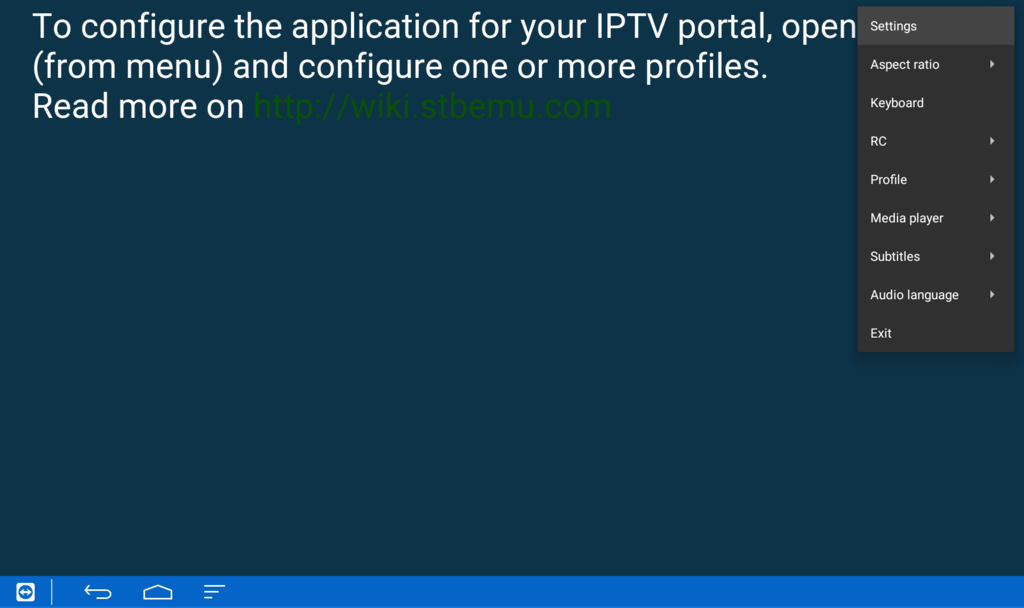
Step 2: Open STB Emu Settings
Press and hold the OK button on your remote control for a few seconds. When the menu appears, select Settings.
Step 3: Create a New Profile
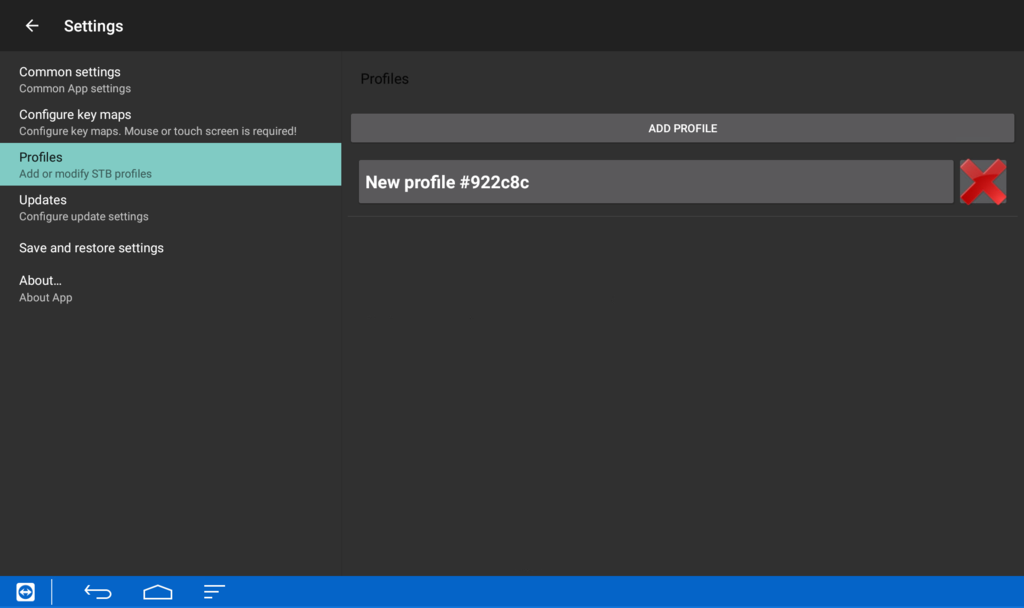
Inside Settings, scroll down and select Profiles. Then choose New Profile.
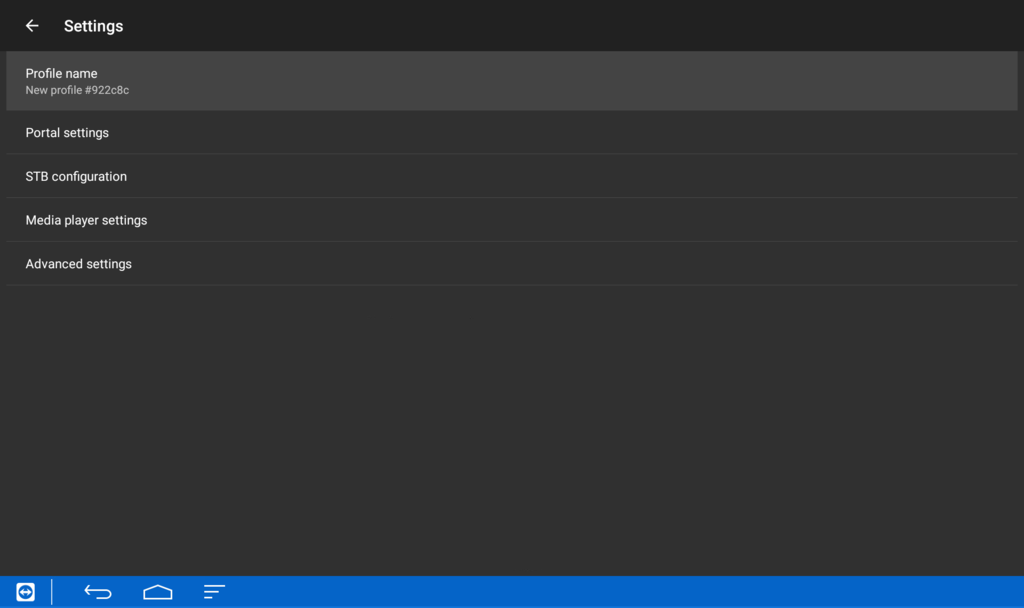
Step 4: Select Profile Name
Open Profile Name. This allows you to give your IPTV profile a name that is easy to recognize.
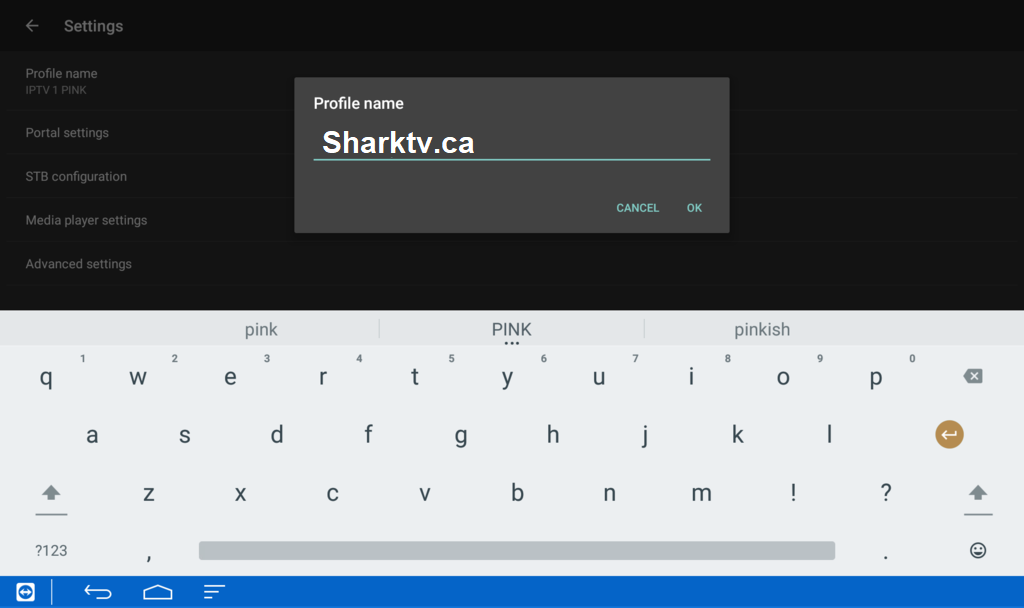
Step 5: Name Your IPTV Profile
Enter a name for the profile, such as SharkTV IPTV, and select OK.
The profile name is only used to help you identify the connection inside the app, so it does not need to match your IPTV server name.
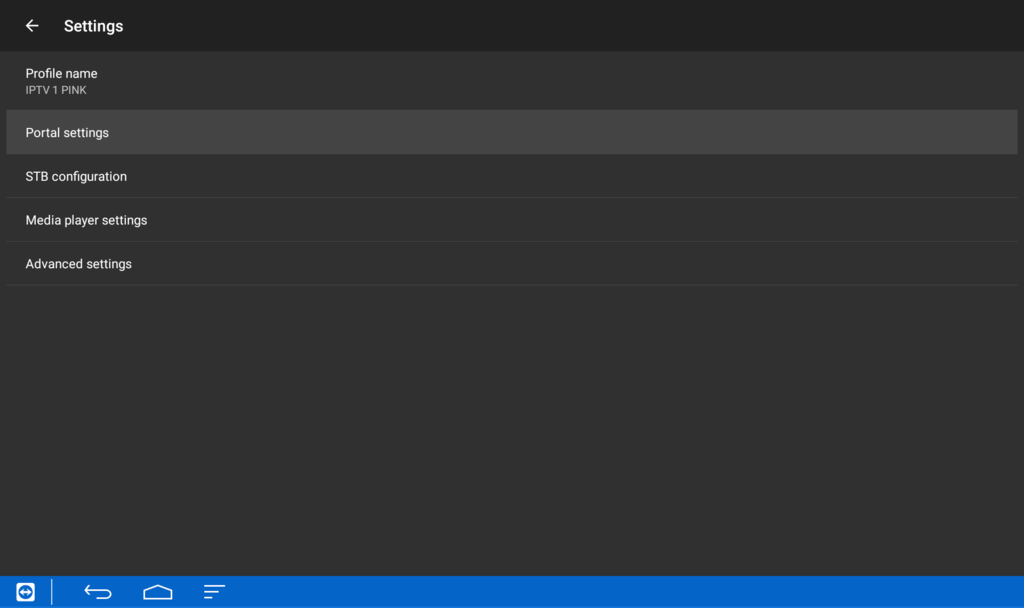
Step 6: Open Portal Settings
From your profile settings, select Portal Settings.
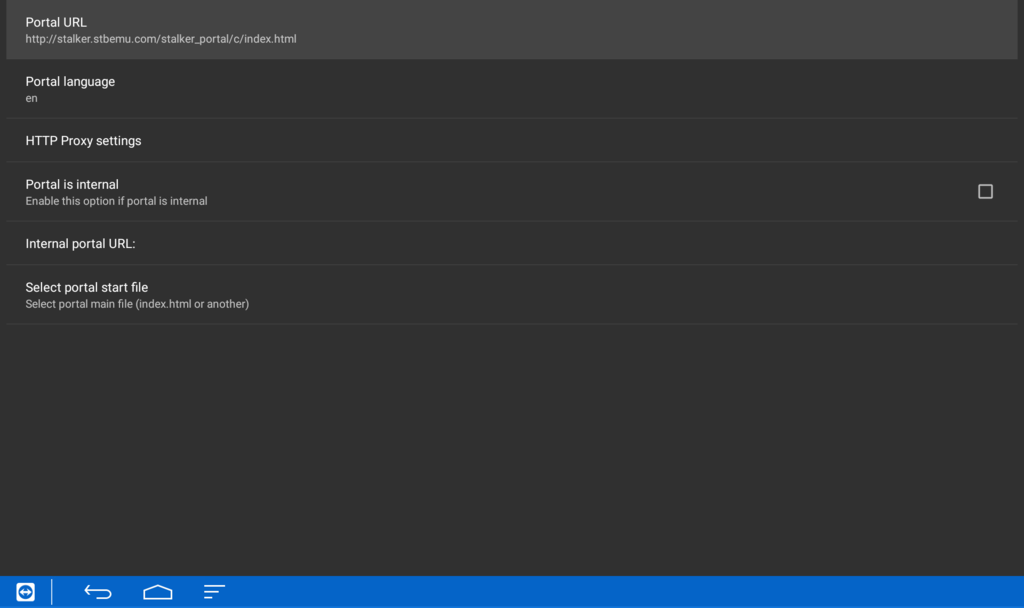
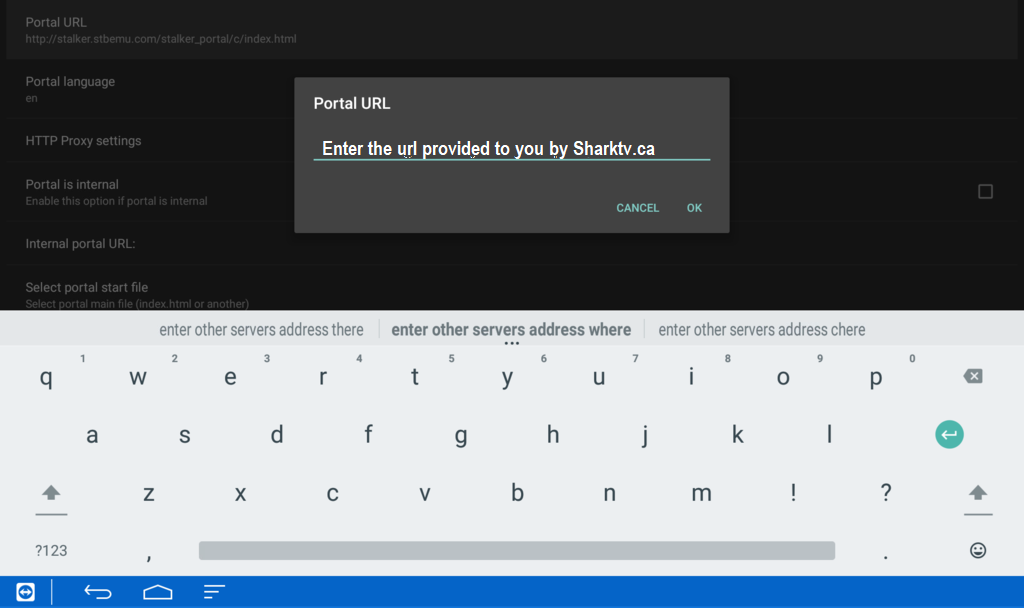
Step 7: Select Portal URL
Inside Portal Settings, select Portal URL.
Step 8: Enter Your IPTV Portal URL
Delete the default Portal URL shown in the app and carefully enter the IPTV Portal URL provided by your IPTV service.
Make sure the Portal URL is entered exactly as provided. An incorrect address, missing character, or extra space can prevent STB Emu from connecting to the IPTV server.
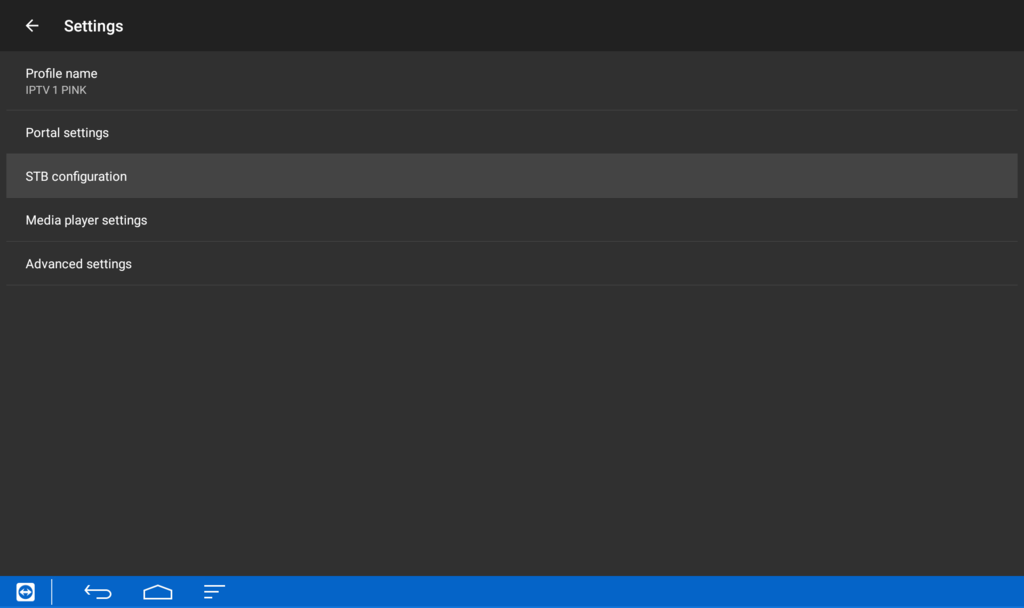
Step 9: Open STB Configuration
Press the Back button once to return to the previous profile menu. Then select STB Configuration.
Step 10: Select MAC Address
Inside STB Configuration, locate and select MAC Address.
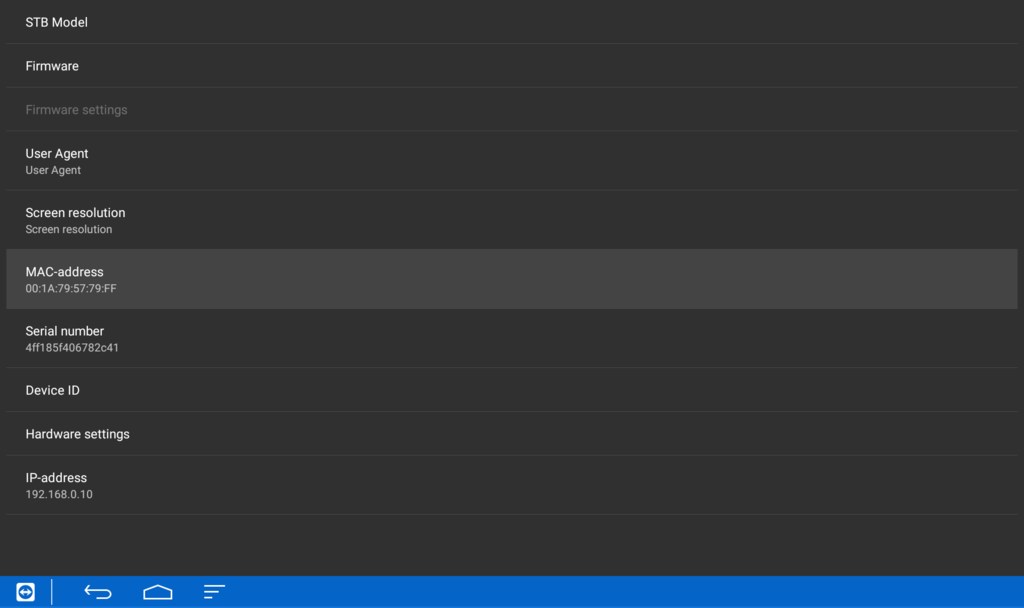
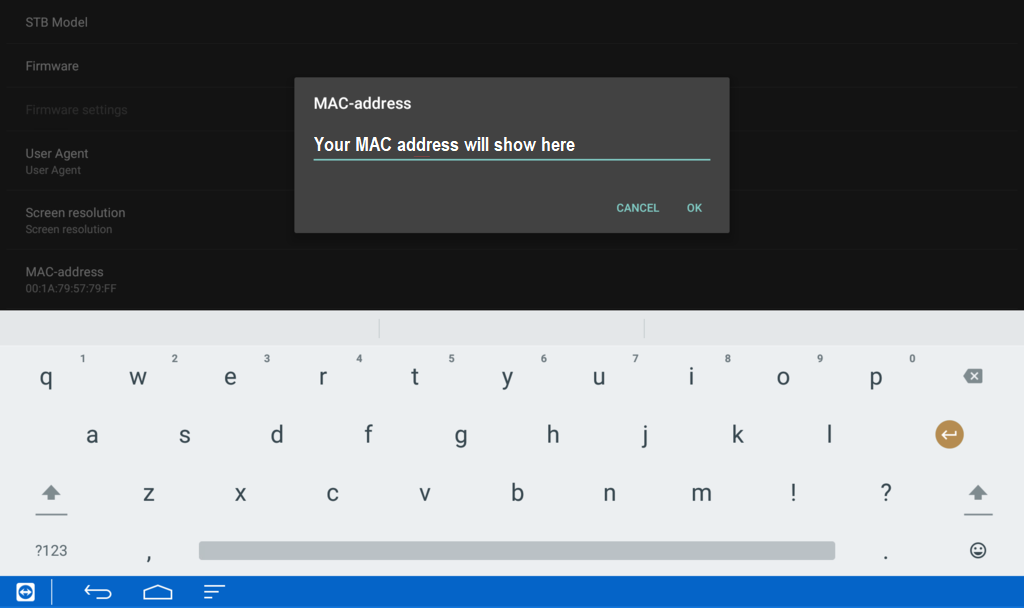
Step 11: Find Your STB Emu MAC Address
Write down or take a picture of the MAC address displayed inside STB Emu. If your IPTV provider requires your MAC address for activation, send this exact address to them.
SharkTV customers should provide the STB Emu MAC address requested for their order so the IPTV account can be activated correctly.
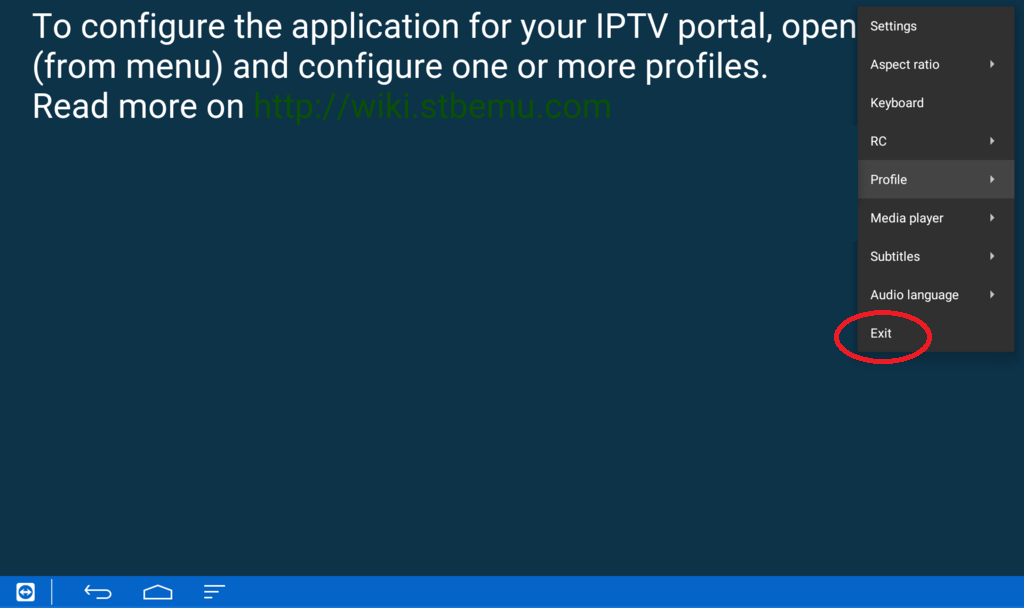
Step 12: Exit and Restart STB Emu
After the Portal URL and MAC address have been configured and your IPTV service has been activated, return to the main STB Emu screen.
Press and hold the OK button on your remote to open the menu, scroll down to Exit, and completely close STB Emu.
Now reopen the STB Emu app. Restarting the application allows it to reconnect using your updated profile settings.
Step 13: Connect STB Emu to Your IPTV Server
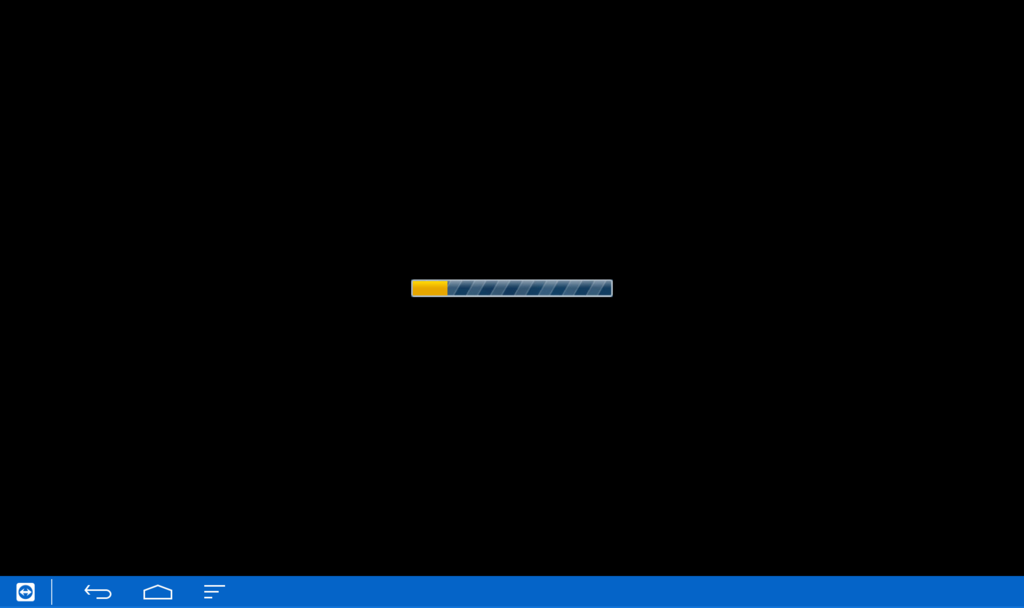
If the Portal URL has been entered correctly and your MAC address has been activated, STB Emu should begin connecting to the IPTV portal.
Allow the portal a moment to load. Once connected, the IPTV interface and available programming should appear.
How to Properly Exit STB Emu
When you finish watching IPTV, it is a good idea to properly exit STB Emu instead of simply leaving the application running in the background.
Press and hold the OK button on your remote until the STB Emu menu appears. Scroll down to Exit and select it to completely close the application.
If STB Emu becomes stuck or displays an error, completely exiting and reopening the app can also help refresh the connection.
How to Change the Media Player in STB Emu
If a channel is not playing properly, STB Emu may allow you to try a different media player.
Press and hold the OK button to open the menu, locate Media Player, and select another available player. Performance can vary depending on your Android device and the stream being played.
STB Emu Not Connecting to IPTV?
If STB Emulator does not connect after setup, check the following before changing your settings:
- Make sure your IPTV subscription is active.
- Confirm that the Portal URL was entered correctly.
- Make sure the correct STB Emu MAC address was provided for activation.
- Check that your device has a working internet connection.
- Completely exit and restart STB Emu.
- Restart your Android device and modem/router if necessary.
If STB Emu connects but channels are freezing or buffering, read our IPTV buffering and freezing troubleshooting guide for additional steps.
What Type of IPTV Works With STB Emu?
STB Emu is primarily used with Stalker Portal IPTV, also commonly referred to as MAC-based IPTV. Your provider registers the MAC address from your STB Emu profile and supplies the Portal URL required to connect.
If you're looking for a compatible service, you can explore SharkTV's Stalker IPTV server for compatible portal and MAC-based devices.
Frequently Asked Questions About STB Emu IPTV
What is STB Emu?
STB Emu is an Android IPTV application designed to emulate a set-top box interface and connect to compatible Stalker Portal IPTV services.
What devices support STB Emulator?
STB Emulator is designed for Android-based devices and can be used on compatible Android TV boxes, Fire TV devices, NVIDIA Shield, Android phones, tablets, and other supported Android streaming devices.
What is the Portal URL in STB Emu?
The Portal URL is the server address supplied by your IPTV provider. STB Emu uses this address to connect your profile to the IPTV portal.
Where do I find my STB Emu MAC address?
Open your STB Emu profile and go to STB Configuration → MAC Address. The MAC address displayed there is the address your IPTV provider may require for activation.
Does STB Emu use Xtream Codes?
STB Emu is mainly designed for Stalker Portal and MAC-based IPTV connections. IPTV apps designed specifically for Xtream Codes normally use a username, password, and server URL instead.
Why is STB Emu not loading my portal?
Common causes include an incorrect Portal URL, an unregistered or incorrect MAC address, an expired IPTV subscription, internet connection problems, or a temporary server issue.
Final Thoughts
Learning how to install and set up STB Emu IPTV is straightforward once you understand the two most important parts of the setup: your Portal URL and MAC address.
After creating your STB Emu profile, entering the correct portal information, and having your MAC address activated, you can use the app to connect your compatible Android device to a Stalker IPTV subscription.
If STB Emu does not connect after setup, double-check the Portal URL and MAC address first. These are two of the most important settings required for a successful Stalker Portal connection.
Related Products