
IPTV buffering, freezing, black screens, and channels that won't load are some of the most common problems IPTV users experience. Whether you're watching live TV, sports, movies, or TV shows, constant interruptions can quickly ruin your streaming experience.
In this guide, we'll explain the most common causes of IPTV buffering and show you how to fix IPTV freezing, channels not working, sports channels blocking, movies stopping, and playback errors on Firestick, Android TV boxes, Smart TVs, BuzzTV, Formuler, MAG boxes, and other IPTV devices.
If you're looking for a reliable IPTV provider with stable servers and fast streaming, browse our Canadian IPTV.
What Causes IPTV Buffering?
Many people assume buffering is always caused by slow internet, but that's not always true. IPTV buffering can happen for several different reasons, including:
- Slow or unstable internet connection
- Weak WiFi signal
- ISP restrictions
- Server congestion
- Outdated IPTV apps
- Poor media player compatibility
- Multiple devices using the same IPTV account
- Low-powered streaming devices
Finding the actual cause will help you solve the problem much faster.
Check Your Internet Speed
Before changing any IPTV settings, test the internet speed directly on the device you're using to watch IPTV.
You can use your IPTV browser or visit Google Speed Test.

Although IPTV may work on slower connections, we recommend at least 150 Mbps for smooth HD and 4K streaming, especially if multiple people use the internet at the same time.
Use a Wired Connection Whenever Possible
WiFi is convenient but can become unstable due to interference from walls, neighbouring networks, or distance from your router.
If your IPTV device has an Ethernet port, connect it directly to your router. A wired connection is usually faster, more stable, and greatly reduces buffering.
Restart Your Router and IPTV Device
Many IPTV issues can be resolved with a simple restart.
Turn off your IPTV device, unplug your modem or router for 2 to 5 minutes, reconnect it, wait until your internet connection is fully restored, and then restart your IPTV device.
Avoid Using Your IPTV Account on Multiple Devices
Most IPTV subscriptions allow only one active connection unless multiple connections were purchased.
If another device is using the same username and password at the same time, your channels may constantly freeze, disconnect, or buffer.
Update Your IPTV App
Running an outdated IPTV application can lead to playback problems and compatibility issues.
Make sure you're using the latest version of your IPTV app, whether it's IPTV Smarters Pro, TiviMate, XCIPTV, STB Emu, or another IPTV player.
Clear the IPTV App Cache
Over time, cached files can become corrupted and affect streaming performance.
On Android devices, go to Settings → Apps → Your IPTV App → Storage → Clear Cache. Avoid selecting Clear Data unless instructed by your IPTV provider.
Why Sports Channels Buffer More Than Other Channels
If only sports channels such as Sportsnet, TSN, PPV events, NHL, NBA, NFL, UFC, or Premier League matches buffer while regular channels work normally, your internet provider may be restricting IPTV traffic during major sporting events.
This type of ISP throttling affects some customers in Canada and may only occur during live sports broadcasts.
Should You Use a VPN?
A VPN (Virtual Private Network) encrypts your internet traffic and may help bypass ISP restrictions that affect IPTV streaming.
If you decide to use a VPN, connect to a server located in your own country whenever possible. Connecting through another country may reduce streaming performance or affect certain IPTV services.
Keep in mind that VPNs can sometimes slow your internet connection, so only use one if it's needed.
Try a Different IPTV Media Player
Sometimes the IPTV player itself causes playback issues rather than the IPTV service.
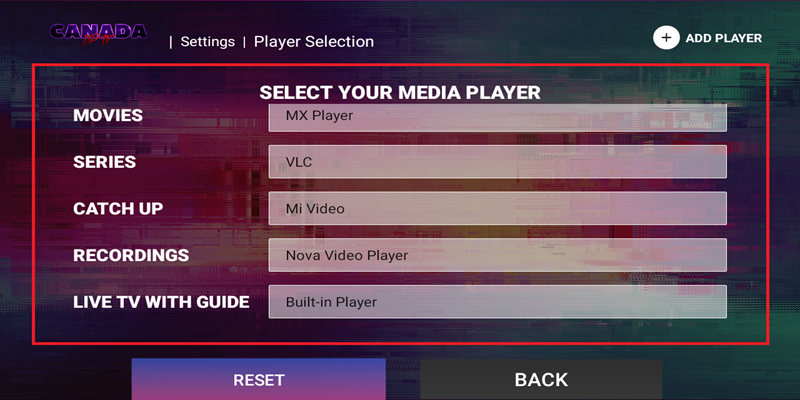
Many IPTV apps support external media players including:
- VLC Player
- MX Player
- Nova Video Player
- XPlayer
- Mi Video
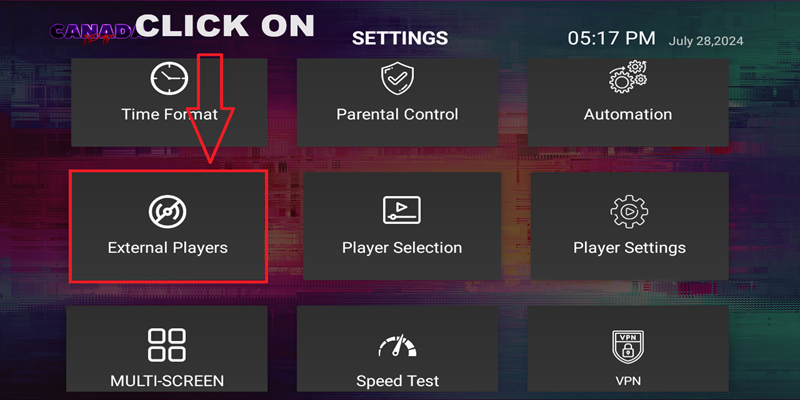
Open your IPTV app settings, enable an external player, and test different players to determine which performs best on your device.
Movies Buffer But Live TV Works
If live TV streams normally but movies or TV shows stop, restart, or buffer, the issue is often related to the media player rather than your internet connection.
Trying another external player often improves movie playback and reduces buffering.
IPTV Channels Show a Black Screen or Won't Load
If channels never start playing or only display a black screen, possible causes include:
- Expired IPTV subscription
- Incorrect portal URL
- Temporary server maintenance
- Internet connection issues
- Outdated IPTV app
- Incorrect login information
If you've checked everything above and the problem continues, contact your IPTV provider for assistance.
Conclusion
Most IPTV buffering and freezing problems can be solved by checking your internet speed, using a wired connection, restarting your router, updating your IPTV app, clearing the cache, or switching media players.
If you're still experiencing constant buffering after trying these solutions, the issue may be related to the IPTV server itself. Choosing a reliable IPTV provider with stable servers can make a significant difference in your streaming experience.
Explore our Canadian IPTV subscription plans or browse our best IPTV servers to learn more.