
Setting up IPTV on a MAG Box (Infomir device) is simple once you understand the activation process. MAG boxes use a MAC address based IPTV system, which means your IPTV provider activates your subscription using the MAC address of your device.
If you are visiting this guide from Google and need IPTV service for your MAG device, you can explore IPTV subscriptions directly from the SharkTV.ca IPTV homepage.
MAG Boxes Compatible With This Guide
This setup tutorial works with most Infomir MAG devices including:
- MAG500A
- MAG520w3
- MAG522w3
- MAG524w3
- MAG540w3
- MAG420
- MAG522
Many MAG boxes run on Android or Linux operating systems and support MAC-based IPTV portals without needing third-party apps.
Before Setting Up IPTV on Your MAG Box
Each MAG device has a unique MAC address starting with:
00:1A:79
You can find this MAC address on the back of your MAG box or inside the device settings. Your IPTV provider will use this MAC address to activate your IPTV subscription.
10 Easy Steps to Setup MAG Box with IPTV
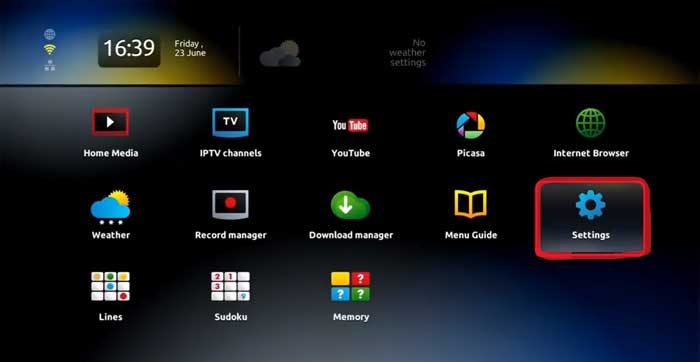
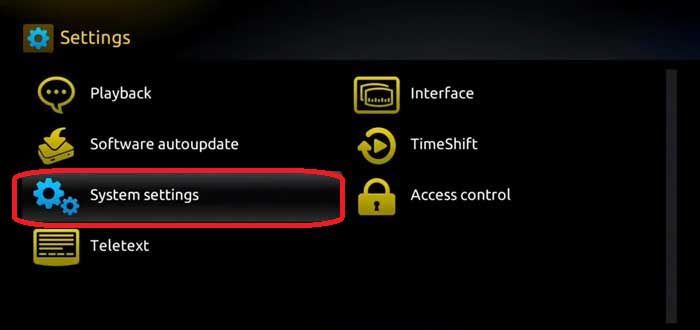
Step 1 – Go to Settings
From the main menu, select Settings.
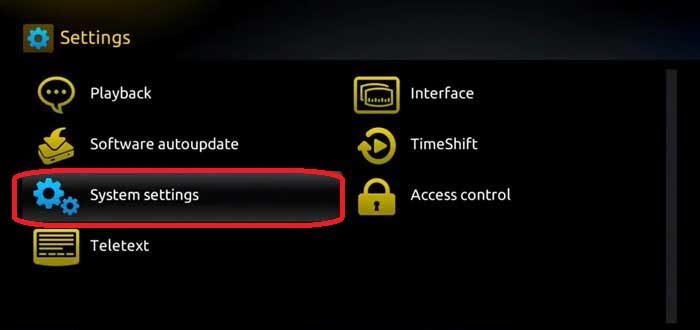
Step 2 – Open System Settings
Inside settings, select System Settings.
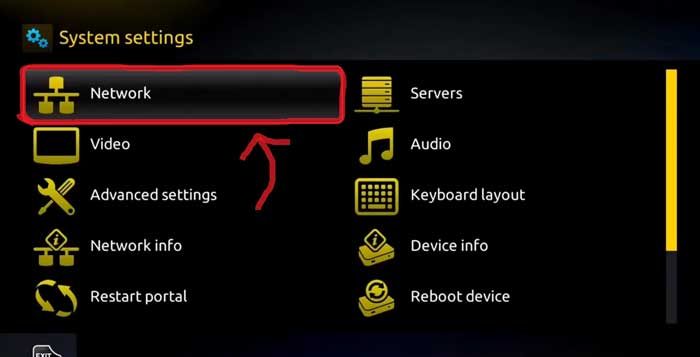
Step 3 – Connect to the Internet
Navigate to Network and connect your MAG device to the internet using either WiFi or Ethernet cable.
Step 4 – Locate Your MAC Address
Find your MAC address which starts with 00:1A:79. Send this MAC address to your IPTV provider so they can activate your IPTV service.
Step 5 – Go Back to System Settings
Return to System Settings to continue the IPTV configuration process.
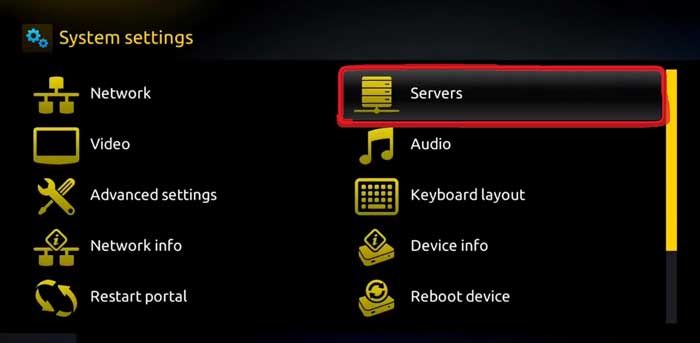
Step 6 – Navigate to Servers
Inside System Settings, select the Servers tab.
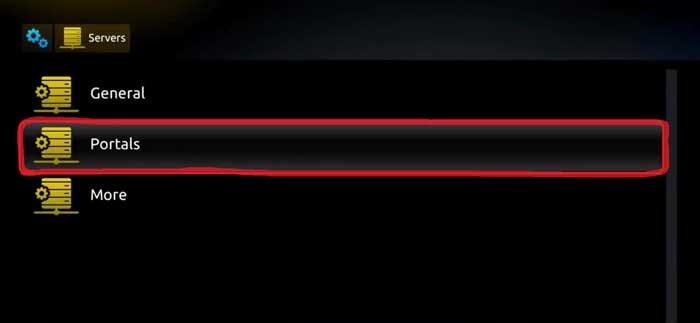
Step 7 – Select Portals
Click on Portals to add your IPTV portal information.
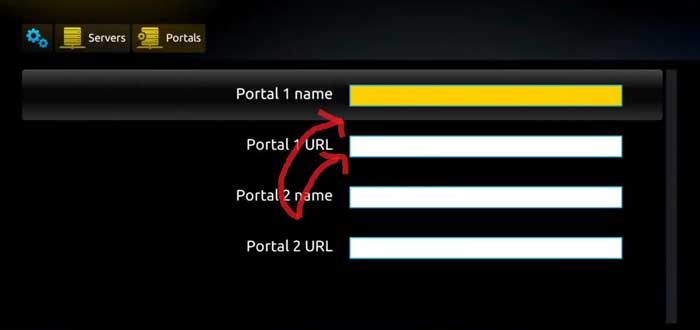
Step 8 – Enter Portal Name and Portal URL
Your IPTV provider will send you the Portal Name and Portal URL. Enter the information exactly as provided and click save.
Step 9 – Restart Portal
After saving the portal settings, click Restart Portal.
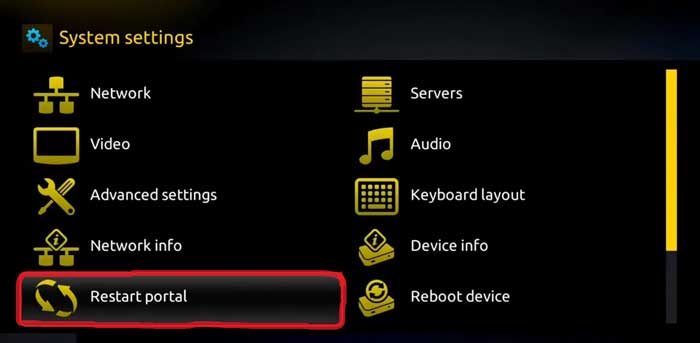
Step 10 – IPTV Activation
If everything was entered correctly, your MAG device will load the IPTV portal and you will see a yellow loading bar on the screen. Once completed, you will have access to all IPTV channels.
Start Watching IPTV on MAG Box
You have now successfully learned how to setup IPTV on your Infomir MAG Box. MAG devices are reliable IPTV streaming boxes that work perfectly with MAC-based IPTV servers.
If you need IPTV service for your MAG box,
Android box, Firestick, Smart TV, or other streaming devices, you can explore Xtream Code api IPTV subscriptions here.
Conclusion
Setting up IPTV on a MAG Box or Infomir device is a simple process once your MAC address is activated and your IPTV portal is configured correctly. MAG boxes are designed specifically for IPTV streaming and provide a stable viewing experience with minimal buffering.
Once the portal URL is entered and the portal is restarted, your MAG device will load the IPTV interface and give you access to live TV channels, movies, sports, and international content.
If you are looking for a reliable IPTV service compatible with MAG boxes, Firestick, Android TV, Smart TVs, and other streaming devices, you can explore available Stalker IPTV subscriptions.
Related IPTV Setup Guides
Related Products